Communication
See also: In a Job
Live, together
When people are in the same job at the same time, they can:
- Talk. Voice is on for everyone in the job (see HyperCall).
- See each other. Everyone appears as an avatar (see Avatars).
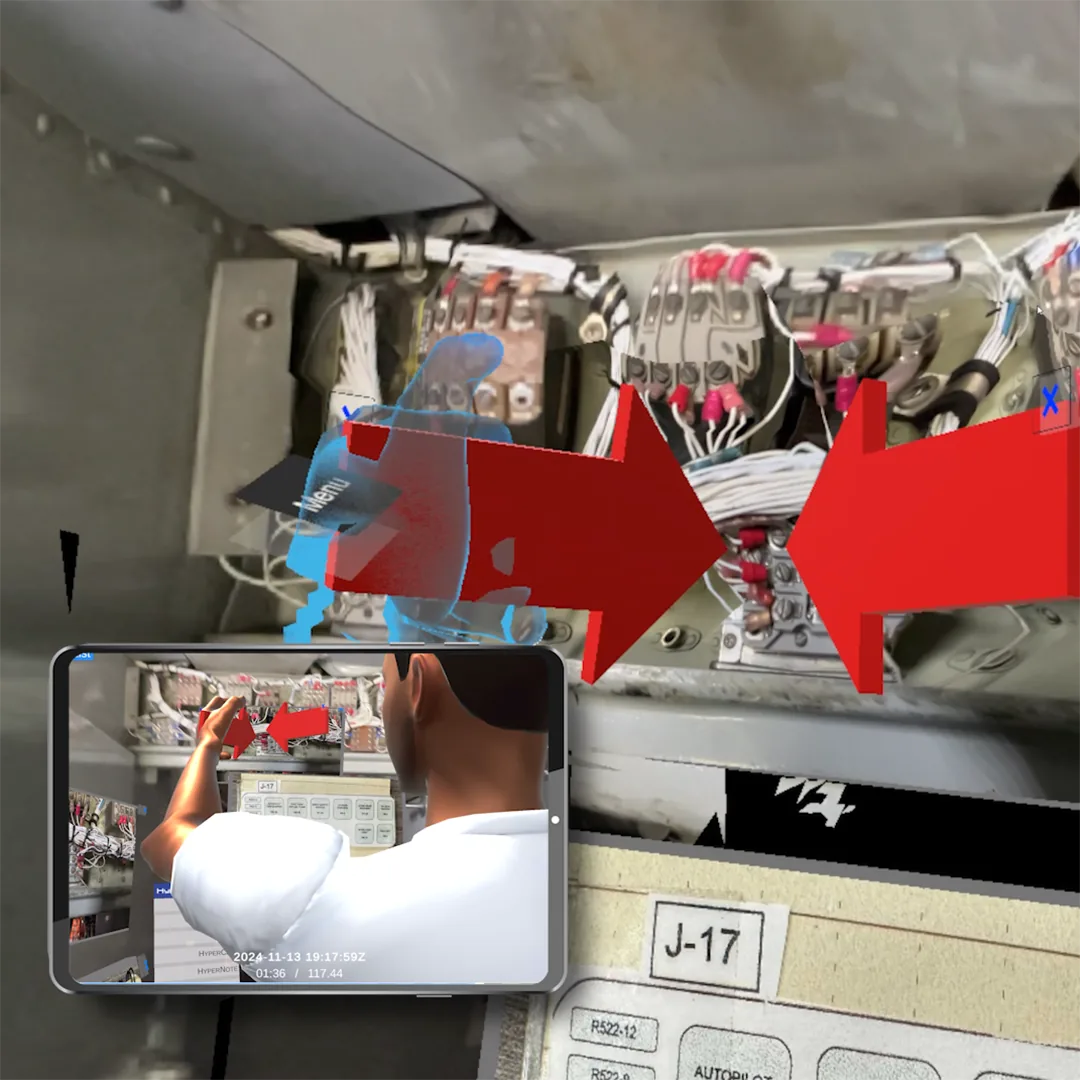
- See each other's view. Everyone shares their camera when they enter (see Casting a Live Video Feed). Others can watch it on a video monitor (see Viewing a Live Video Stream).
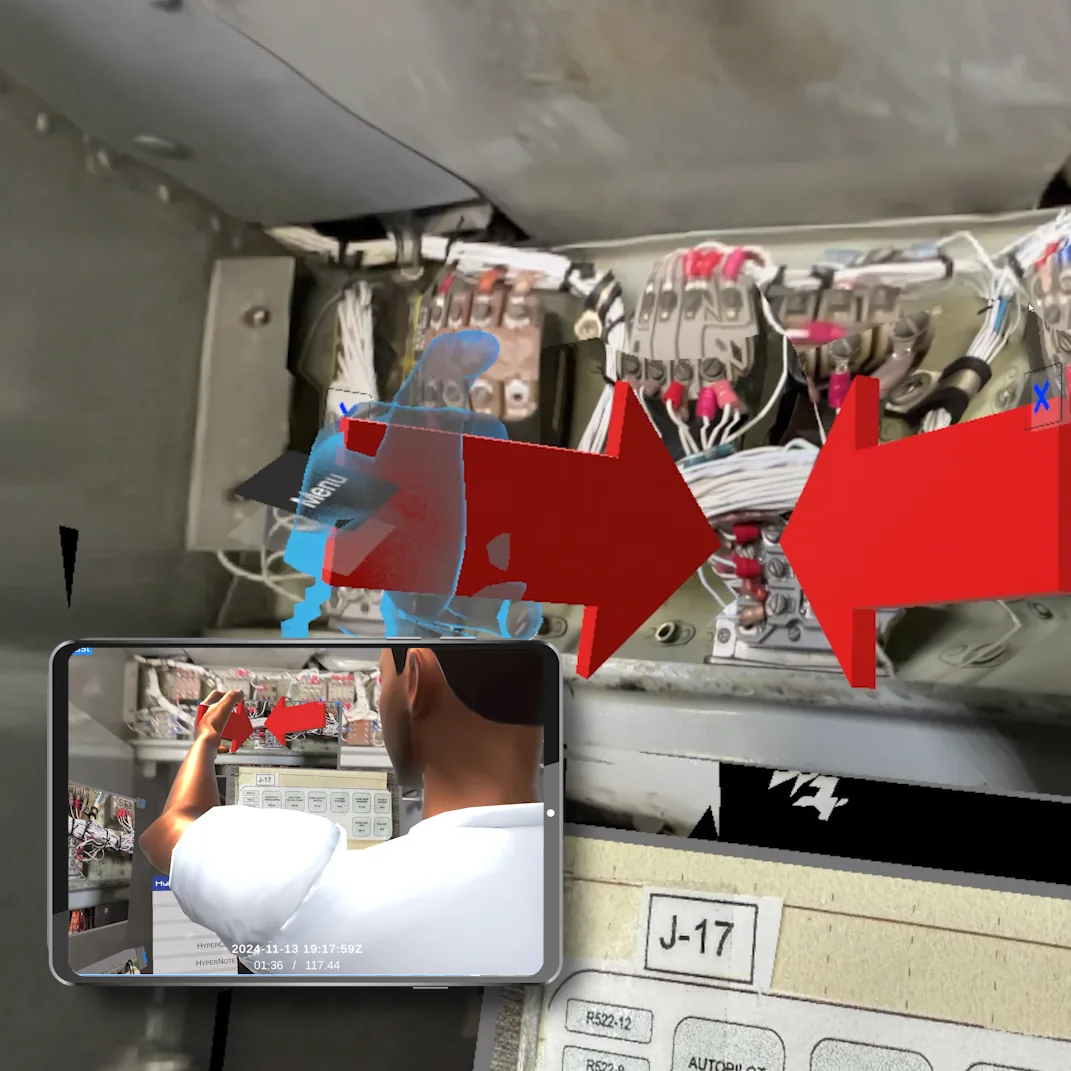
Live voice and video need a connection: they are not available in a job you have checked out and entered offline.
At different times
A HyperNote records what happens in the job, in 3D: who was there, where they moved, what they said and showed, and what changed. Others play it back later, in the job, and can walk around it (see HyperNote).
HyperCall
HyperCall is the voice connection in a job. When you enter a job online, you can talk with everyone in it. There is nothing to start.
- To stop others hearing you, use Mute Microphone.
- To stop hearing others, use Mute Audio.
- On a headset, Spatial Audio makes voices come from where people are.
HyperCall needs a connection. It is not available in a job you have checked out and entered offline.
If your voice connection cannot start when you enter, entry fails with a code starting with V (see Troubleshooting).
Casting a Live Video Feed
When you enter a job online, your view is shared ("cast") so that others can watch it. They see it on a video monitor (see Viewing a Live Video Stream).
- On an iPad or iPhone, others see your camera: in AR mode, the real place you are looking at.
- On a headset, others see what you see in the job.
Turn it off or on
- Open Settings (the gear) in the menu.
- Turn Cast Video off to stop sharing your view, or on to share it again.
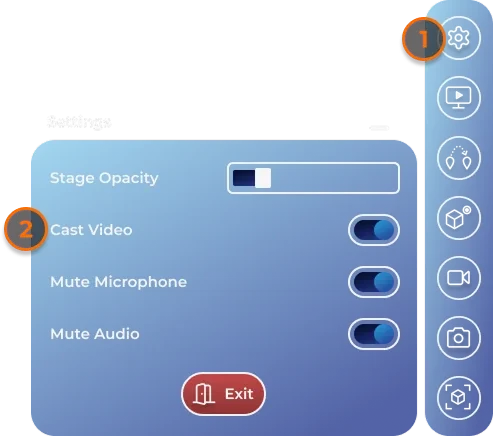
- Cast Video is hidden in a job you have checked out, which has no live connection.
- While a HyperNote is recording, turning casting off leaves your part of the recording black for that time.
Viewing a Live Video Stream
Watch what someone else in the job is seeing: for example, the camera of a colleague on site with an iPad.
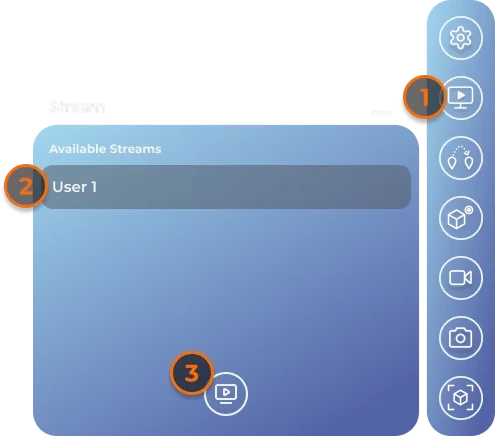
- Open Stream in the menu. Available Streams lists the people sharing their view.
- Select a name.
- Press the watch button. A video monitor showing their view appears in front of you.
The video monitor
- It is a Job Object: everyone sees it, and anyone can move or scale it.
- Tap it to show its options: the person's name, a Zoom slider, and an × that removes the monitor for everyone.
- It turns tall when an iPad or iPhone user holds their device in portrait.
- Live monitors have a blue frame.
You can also remove a monitor by shrinking it until it turns red (see Scale to Delete).
During a HyperNote
While a HyperNote is playing, Stream lists the people recorded in it instead. Watching one adds a monitor showing what they saw during the recording, in step with playback. These monitors have a purple frame, and are saved with the HyperNote: they come back each time it plays (see HyperNote).
Live streams need a connection; the list is empty in a job you have checked out and entered offline.
Spatial Audio
With Spatial Audio on, voices and sounds come from where people and objects are in the job, and get quieter with distance. With it off, everyone sounds the same wherever they are.
- On a headset, open Settings (the gear) in the menu.
- Turn Spatial Audio on or off.
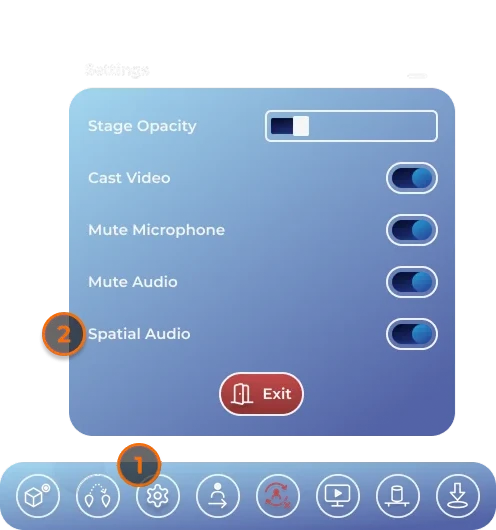
Spatial Audio is a setting for the whole job: turning it on or off changes it for everyone in the job. It is off to start with.
The setting appears only on headsets.