Entering a Job
See also: Enter Job from the Web · Scanning · Lobby and Job List
A job is made of locations. Every job has a virtual location called Homebase. Other locations are real places, created on site with an iPad or iPhone.
Two ways to be in a job
You are in a job in one of two modes. Choose the one that fits where you are.
- AR mode: on site
- VR mode: from anywhere
On an iPad or iPhone, standing at the real place. The job's content is placed on the place around you, through the camera.
- On the job list, select the job and tap Enter.
- Choose a real location (not Homebase) and tap AR Enter (see Location Selection).
- Move the device slowly while the app lines it up with the place (see Calibration).
- Only one person can be in AR at each location.
- In a dark place, turn on Torch Mode before entering.
On any device. You see the location as a 3D model and move around it remotely.
- iPad, iPhone: select the job, tap Enter, choose any location, including Homebase, and tap VR Enter.
- Meta Quest, HTC VIVE Focus Vision: select the job and choose Enter. You go straight into Homebase, in VR, and the menu opens in front of you.
Once in, you can move between locations with Jump.
Entering
The steps are in Enter Job. You can also start from the Web Console on an iPhone, iPad or Quest (see Enter Job from the Web).
While the job loads, you may see "Downloading Asset… (n/N)", then "Waiting to enter job..." while HyperTunnel admits you. Cancel on either screen returns to the job list.
When you cannot enter
Entry is refused while something in the job needs it to stay still, or when the job is not available. The message tells you why, for example:
- "A HyperNote is currently being recorded. Please try again later."
- "Mesh scanning is currently in progress. Please try again later."
- "Maximum AR users reached at the selected location." Only one person can be on site in AR at each location: enter in VR, or choose another location.
- "Checked out by …": someone has taken the job for offline work.
- "Job is currently being processed. Please try again later": HyperTunnel is exporting, importing or duplicating it.
Most messages end with a code, such as "(Error: D9)". Troubleshooting lists the codes and what to do.
Leaving
See Exit Job.
Enter Job
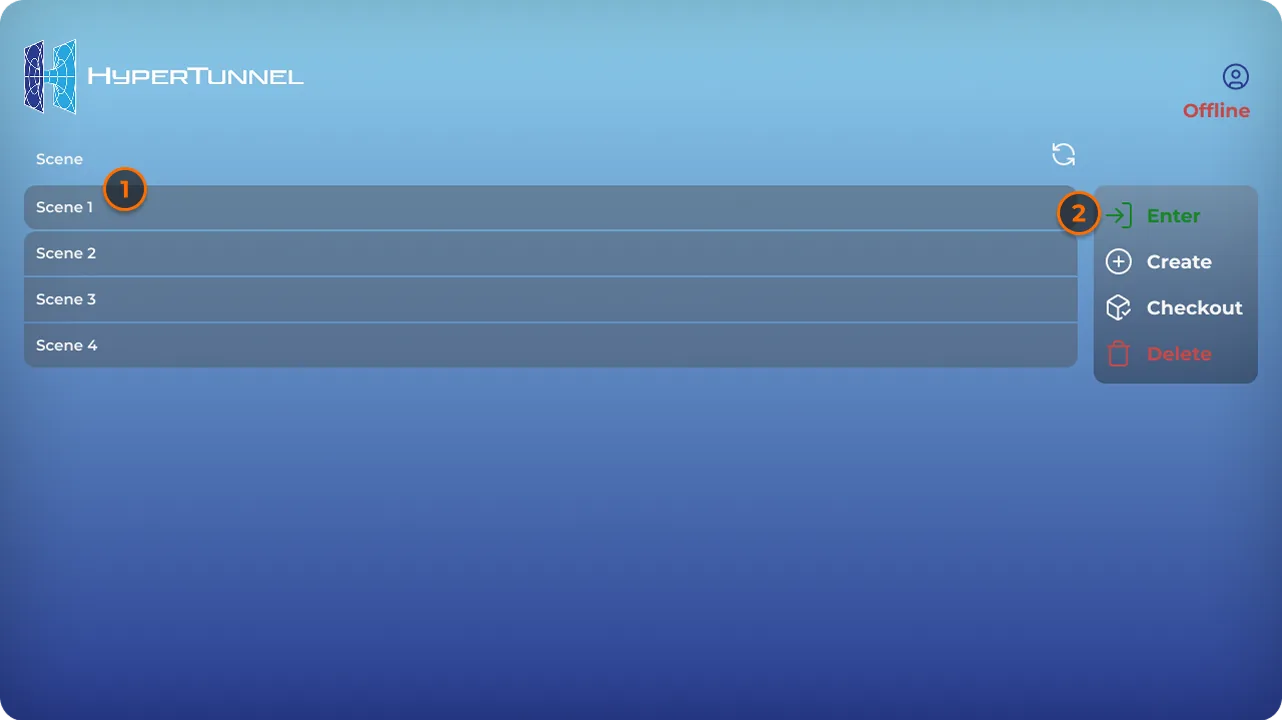
- On the job list, select the job.
- Tap Enter.
- What happens next depends on your device:
- iPad, iPhone: the Select Location panel opens. Choose a location and AR Enter or VR Enter (see Location Selection).
- Meta Quest, HTC VIVE Focus Vision: you enter the job's Homebase in VR. The menu opens in front of you (see In a Job).
- While the job loads, "Waiting to enter job..." may show. Cancel returns to the job list.
If HyperTunnel is still processing some of the job's files, the app asks "Some job assets are being processed by the server, do you still want to enter?". You can enter; those files appear when they are ready.
When Enter is greyed out or refused
- Enter is greyed out for a job someone else has checked out, and for a job you checked out while you are online: enter that one offline (see Offline Mode).
- Entry is refused while a HyperNote is being recorded or played, a mesh scan, photo, video or Shelf item is in progress, or the job is being processed. Wait and try again. The message's code is explained in Troubleshooting.
You can also enter a job from the Web Console on an iPhone, iPad or Quest (see Enter Job from the Web).
Location Selection
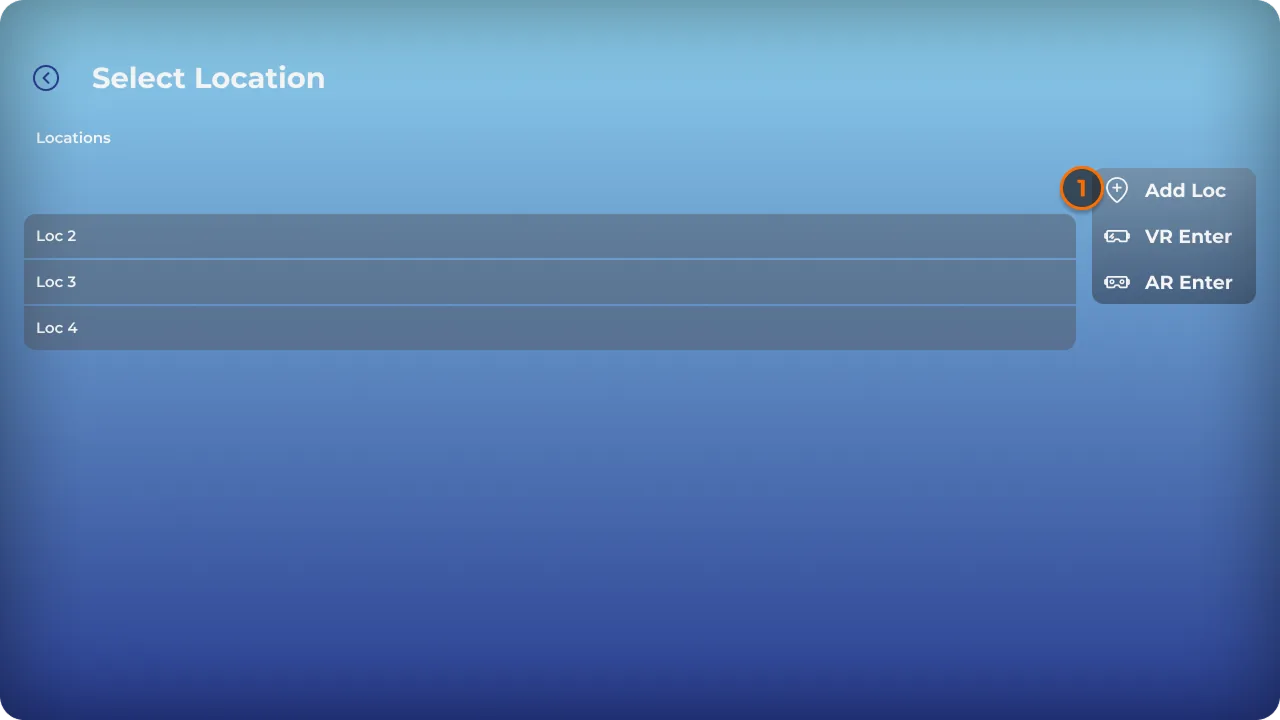
On an iPad or iPhone, entering a job opens the Select Location panel. It lists the job's Locations, including Homebase, the job's virtual location.
Enter a location
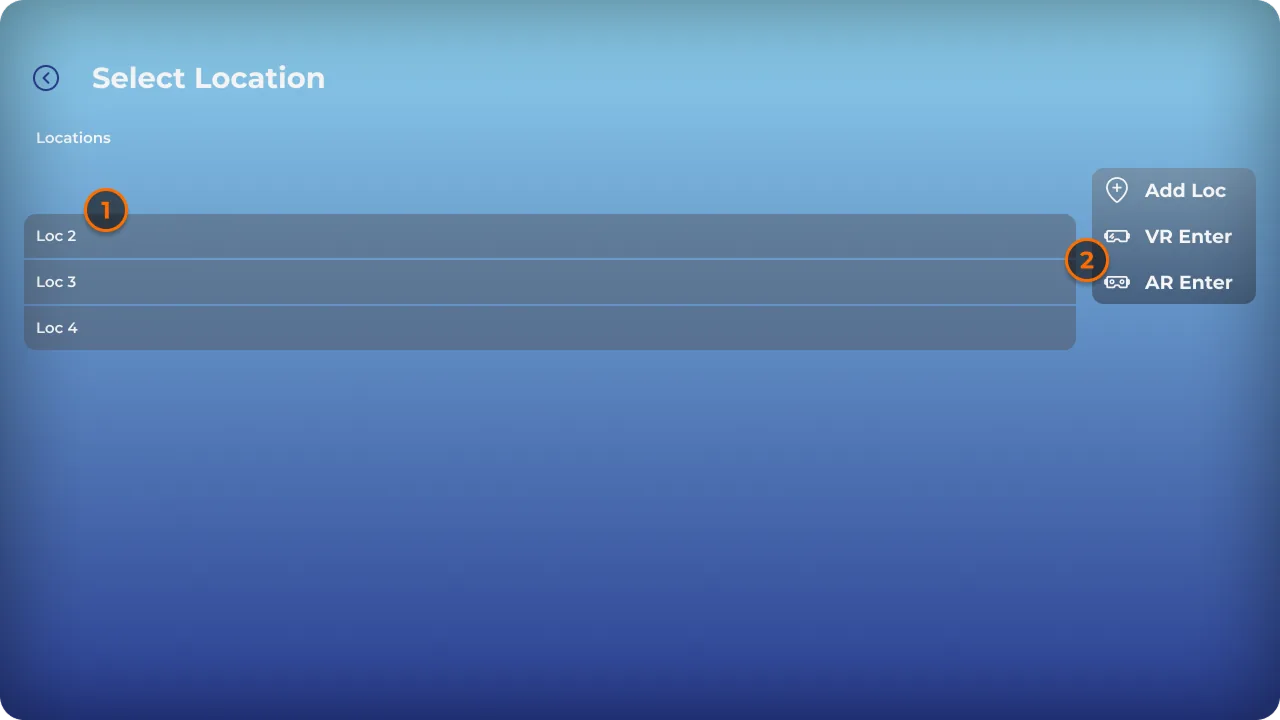
- Tap a location.
- Tap AR Enter or VR Enter:
- VR Enter works for any location. You see it as a 3D model.
- AR Enter is for a real location, when you are standing there. It is not available for Homebase. The app calibrates to the location first (see Calibration).
Only one person can be in AR at each location. If someone already is, you see "Maximum AR users reached at the selected location.": enter in VR, or choose another location.
The back arrow returns to the job list.
Add a location
Add a location when you are on site at a place the job does not have yet.
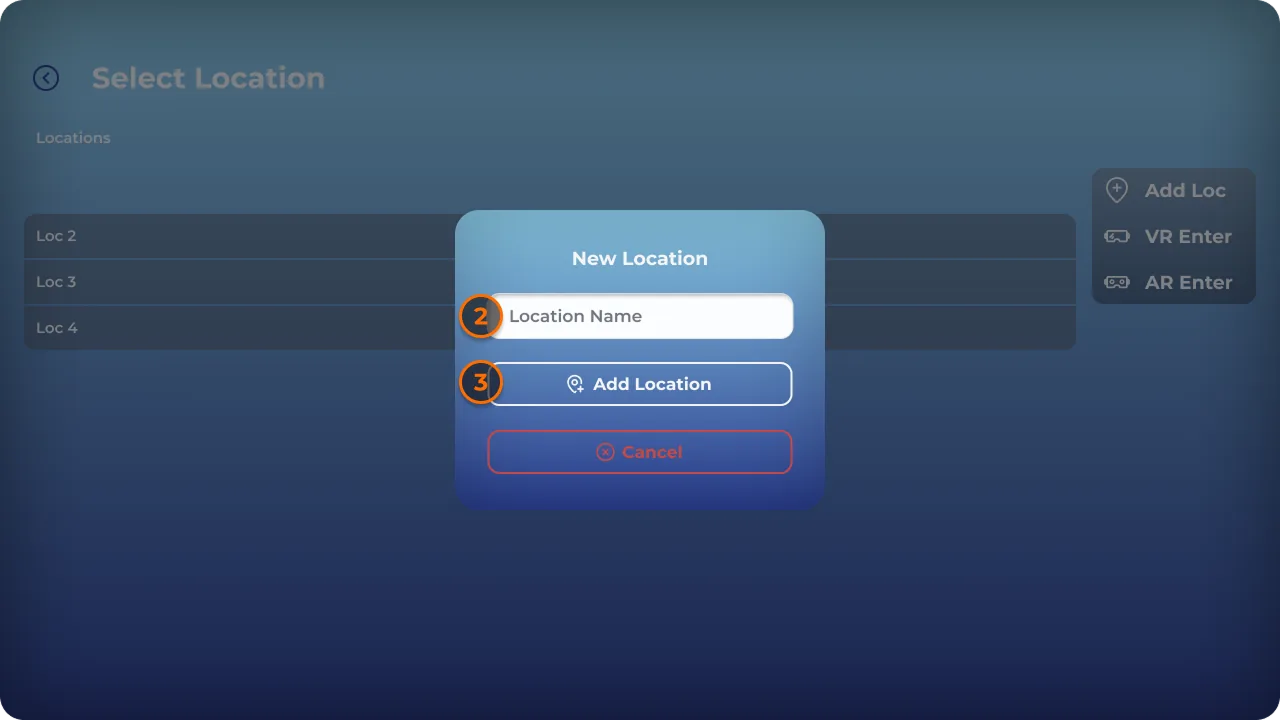
- Tap Add Loc. The New Location window opens.
- Enter a Location Name.
- Tap Add Location. The app creates the location and enters it in AR straight away, calibrating the place around you.
The name must not be empty, and must be different from the job's other locations ("Location already exists. Please use a different name").
Calibration
When you enter a location in AR, the app recognises the place around you so that the job's content lines up with the real world. This is calibration.
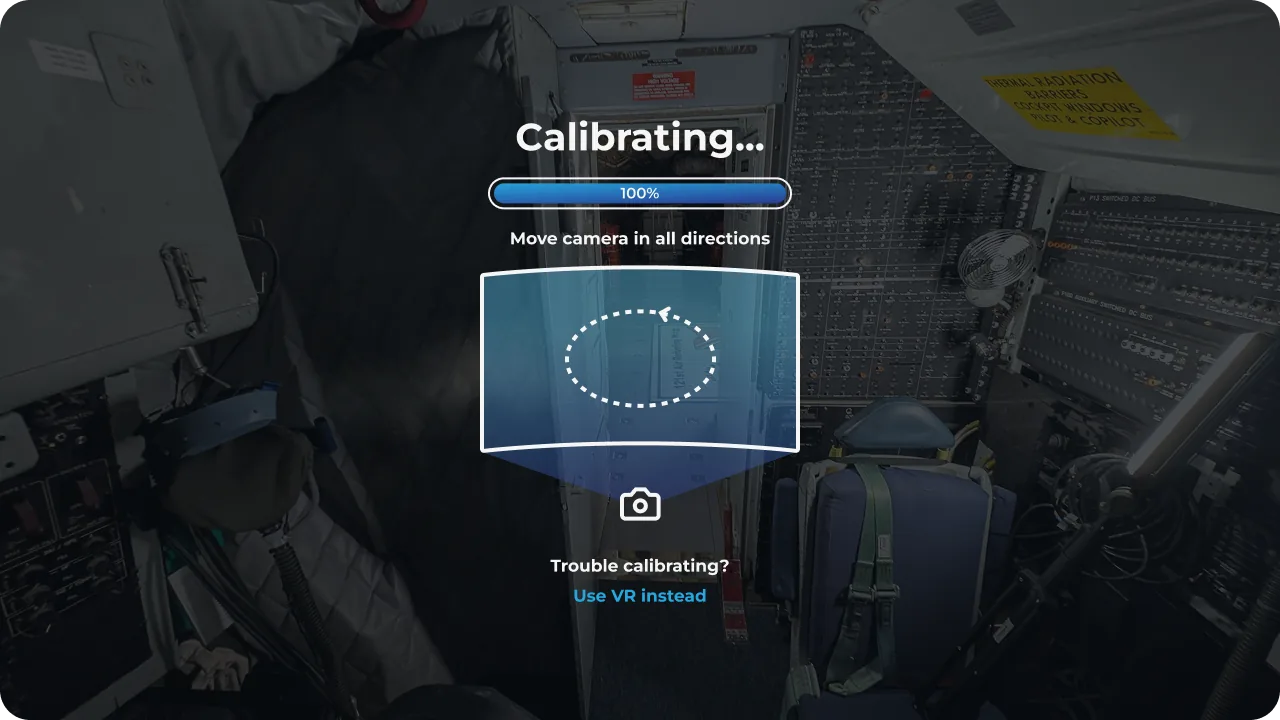
- Choose a location and AR Enter (see Location Selection).
- The window shows "Calibrating..." and "Move camera SLOWLY in all directions".
- Move your device slowly, pointing at the room's surfaces, until the job opens.
Abort returns to the job list.
Tips
- Move slowly, and point at surfaces with texture and detail. Plain walls and shiny surfaces are hard to recognise.
- Light helps. In a dark place, turn on Torch Mode before entering.
- Stand roughly where the location was created.
If calibration fails
- When entering: entry stops with "Failed to establish calibration with selected location." Try again, or enter in VR instead.
- When you jump back to your AR location inside a job: the window offers Use VR instead. If calibration fails, the app switches you to VR.
Jumping to any other location is always in VR (see Jump Locations).
Torch Mode
Torch mode lights the room with your iPad's or iPhone's torch while you are in AR. Calibration and scanning both work better with light.
- Before entering the job, open Lobby Settings (the gear on the job list).
- Turn on Torch.
- Enter the job in AR. The torch comes on when calibration starts and stays on while you are in AR.
- It stays on if you jump to VR inside the job, and turns off when you leave the job.
- It cannot be changed inside a job: set it before you enter.
- It is off again each time you open the app.
- On a device without a torch, the setting shows (N/A).
In a lit room, prefer the room's lights: the torch makes a moving bright spot and reaches only 1–2 m. In a dark room, use it. iOS may turn the torch off if the device gets hot.