HyperNote
See also: Communication · In a Job
A HyperNote is a recording of a job in 3D. It captures everyone in the job: where they moved, what they said, what their cameras showed, and the objects they added, moved or deleted. Anyone can play it back later in the same job, and walk around inside it.
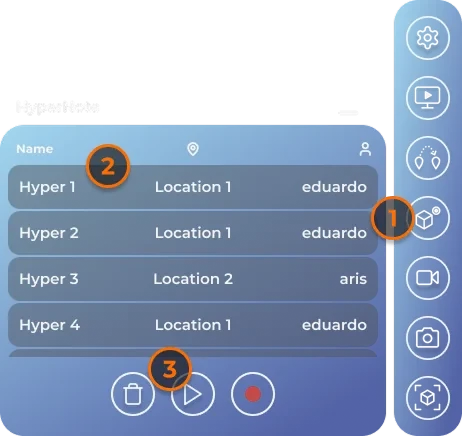
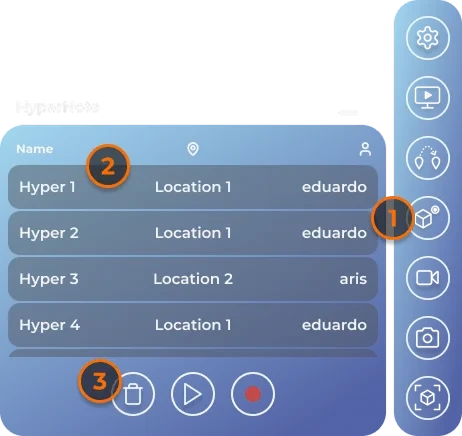
Open HyperNote in the menu. The panel lists the job's HyperNotes, newest first, with the location each was recorded at and who recorded it.
Record
- Press the record button (red dot).
- Online, the panel shows "Pending Server Response" while everyone's recording starts. This usually takes a few seconds; with several people, up to about 30. Cancel stops it before it starts.
- Recording starts: the panel shows New HyperNote Recording and a timer. Show and explain what you need to.
- Press the save button (disk) to stop. "Saving recording..." shows, then the list.
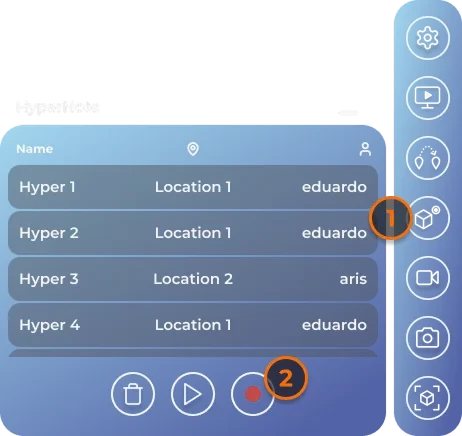
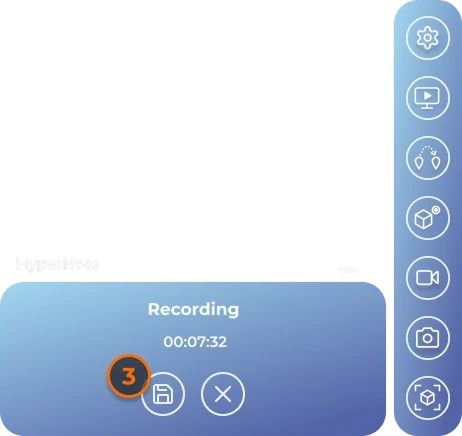
Once recording has started there is no Cancel: save it, then delete it if you do not want it.
- The HyperNote appears in the list when it has been processed. It is named with the date and a number, such as
26285-01. To rename it, use the Web Console (see Manage Job). - If someone's video or sound could not be collected, you see "HyperNote saved, but some participant video or audio is missing."
- In a job you have checked out and entered offline, recording starts at once, and records only you: your camera and your voice.
Play
- Select a HyperNote and press the play button.
- If it was recorded at another location, the app asks "Jump to location … to play HyperNote?". Confirm to go there (see Jump Locations).
- The job is replaced by the recording, for everyone in the job. You can walk around while it plays.
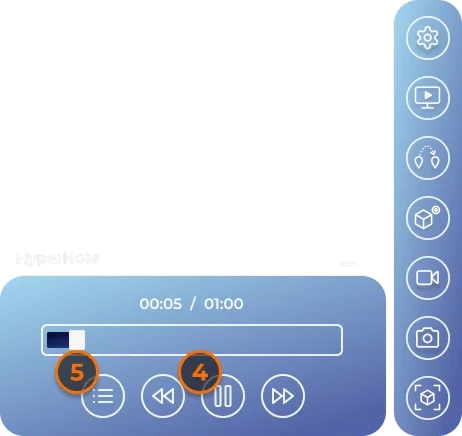
The playback bar has, from left to right: back to the list (stops playback for everyone), back 2 seconds, play and pause, and forward 2 seconds. Drag the slider to move through the recording. Anyone in the job can control playback.
While a HyperNote plays, you can open Stream and watch what one of the recorded people saw. The video monitor you add is saved with the HyperNote (see Viewing a Live Video Stream).
Delete
- Select a HyperNote and press the delete button (bin).
- Confirm.
Deleting cannot be undone.
One at a time
A job can have only one HyperNote recording or playing at a time. Meanwhile nobody else can enter the job ("A HyperNote is currently being recorded. Please try again later."), and some actions, such as spawning from the Shelf, are refused with an error sound.