In a Job
See also: Communication · HyperNote
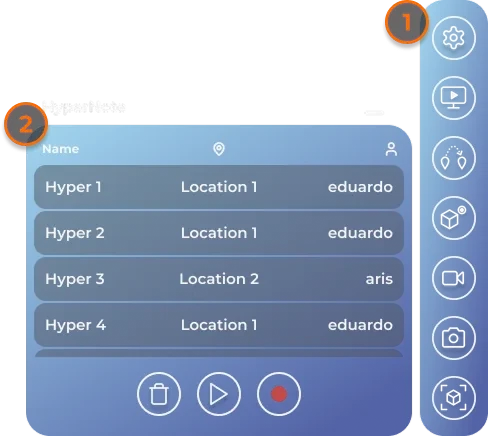
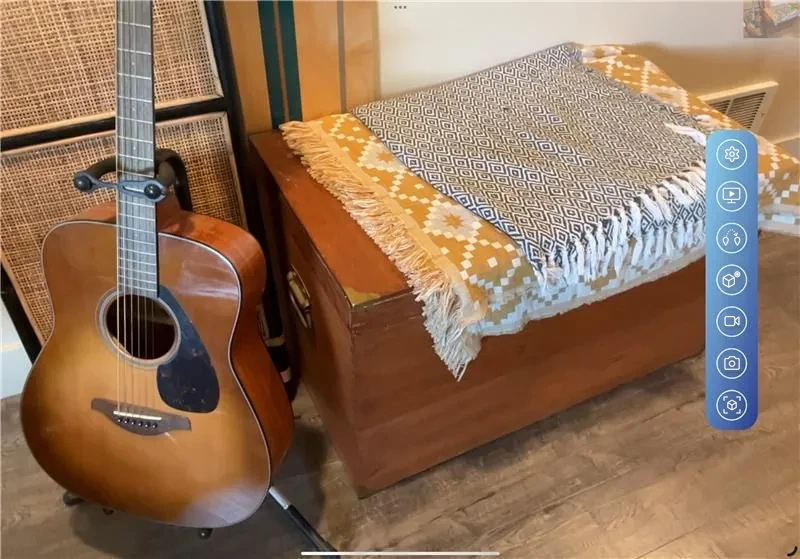
Inside a job, the dashboard is your menu. It is a tab bar of round buttons. Most buttons open a tool panel next to the bar; the minimize button (a short line, top right of the panel) closes it.
The buttons
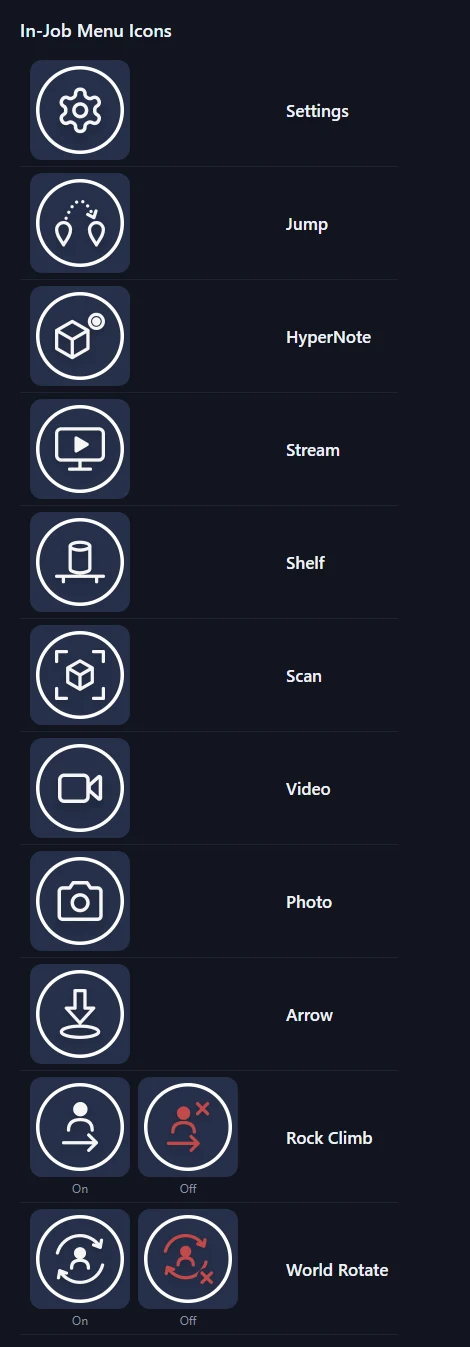
| Button | What it does |
|---|---|
| Settings (gear) | Sound, camera sharing, stage visibility and Exit (see Settings) |
| Jump | Move to another location in the job (see Jump Locations) |
| HyperNote | Record and play spatial messages (see HyperNote) |
| Stream | Watch someone's live camera (see Viewing a Live Video Stream) |
| Shelf | Place files from the job's Shelf (see Spawn from Shelf) |
| Scan | Scan the room in 3D (see Scan) |
| Video | Record a video (see Video) |
| Photo | Take a photo (see Photo) |
| Arrow | Place an arrow marker (see Arrows) |
| Rock Climb | Turn grab-to-move on or off (see Rock Climb) |
| World Rotate | Turn two-handed world rotation on or off (see World Rotate) |
Rock Climb and World Rotate are switches: white when on, red with an × when off.
Which buttons you see
| Device and mode | Buttons |
|---|---|
| iPad, AR mode | Settings, Stream, Jump, HyperNote, Video, Photo, Scan |
| iPad, VR mode | Settings, Stream, Jump, HyperNote, Shelf |
| iPhone, AR mode | Scan, Photo, Video, HyperNote, Jump, Settings, Stream |
| iPhone, VR mode | HyperNote, Jump, Settings, Stream, Shelf |
| Meta Quest, HTC VIVE Focus Vision | HyperNote, Jump, Settings, Rock Climb, World Rotate, Stream, Shelf, Arrow |
- iPad and iPhone
- Meta Quest and HTC VIVE Focus Vision
The bar is always on screen: down the side on an iPad, along the bottom on an iPhone. An iPhone switches between its landscape and portrait layouts as you turn it; an open panel moves with it.
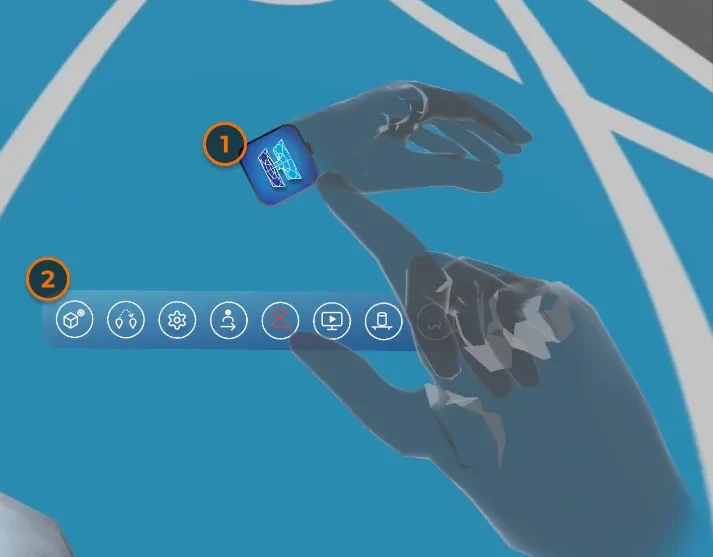
- When you enter a job, the menu opens in front of you by itself.
- Poke the buttons with your index fingertip.
- Pinch the bar and move your hand to move the menu.
- The wrist button on your left wrist, a watch face with the HyperTunnel logo, brings the menu back in front of you. Pressing it never closes the menu.
- In the lobby, the same button brings the lobby window back in front of you.
Settings
Inside a job, tap or poke Settings (the gear) in the menu (see The buttons). The panel holds, from top to bottom:
| Setting | Devices | What it does |
|---|---|---|
| Stage Opacity | All | How visible the location's 3D model is (see Stage Opacity) |
| Cast Video | All | Whether others can see your camera (see Casting a Live Video Feed) |
| Mute Microphone | All | Stops others hearing you (see Mute Microphone) |
| Mute Audio | All | Stops you hearing the job (see Mute Audio) |
| Spatial Audio | Headsets | Makes voices come from where people are, for everyone in the job (see Spatial Audio) |
| Exit | All | Leaves the job (see Exit Job) |
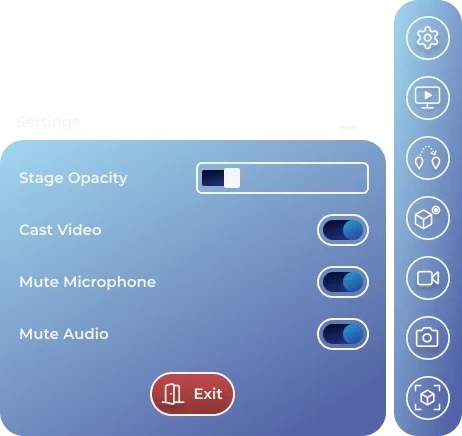
Cast Video is hidden in a job you have checked out, which has no live connection.
Outside a job, the gear on the job list opens a different window: see Lobby Settings.
Stage Opacity
The stage is a location's 3D scan. Stage Opacity sets how visible it is, from hidden to fully visible. It affects only your view.
- Open Settings (the gear) in the menu.
- Drag the Stage Opacity slider. The stage updates when you let go.
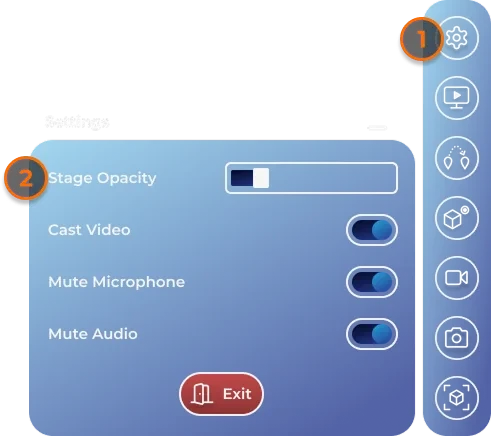
- In VR mode the stage starts fully visible: it is what you see of the place.
- In AR mode it starts hidden, because you see the real place through the camera. Raise it to compare the scan with the real room.
- It goes back to these starting values when you switch between AR and VR, and when a HyperNote starts playing.
- While you are scanning, your stage is hidden.
Mute Audio
Mute Audio stops you hearing anything from the job: other people's voices, videos and audio. It affects only your device.
- Open Settings (the gear) in the menu.
- Turn on Mute Audio. Turn it off to hear again.
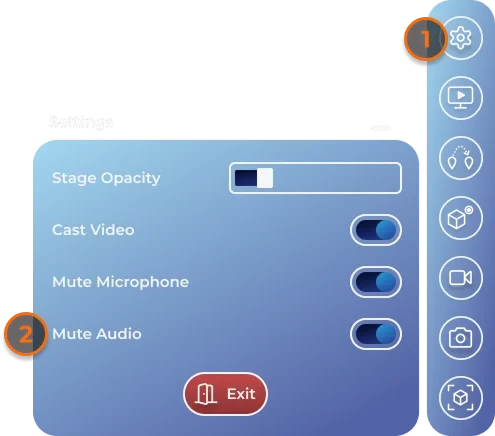
Others can still hear you. To stop that, use Mute Microphone.
Mute Microphone
Mute Microphone stops others in the job from hearing you. You still hear them.
- Open Settings (the gear) in the menu.
- Turn on Mute Microphone. Turn it off to be heard again.
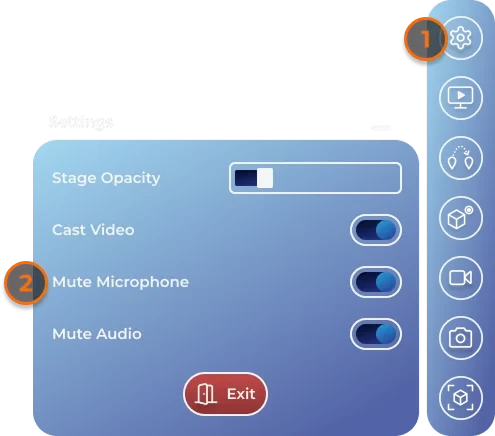
While your microphone is muted, a HyperNote records you without sound (see HyperNote).
Exit Job
- Open Settings (the gear) in the menu.
- Tap or poke Exit.
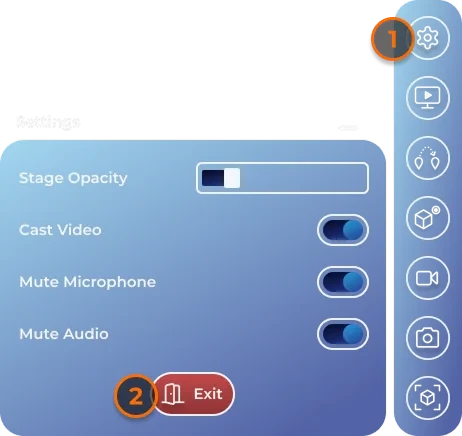
You return to the job list. There is no confirmation.
- iPad, iPhone: the app first finishes anything still uploading, such as a scan or photo ("Finishing background tasks before exiting..."), then "Exiting Job...". The torch, if on, turns off.
- Meta Quest, HTC VIVE Focus Vision: you return straight to the job list, and the lobby is see-through again.