Lobby and Job List
See also: Entering a Job
After you sign in, the app shows your business's jobs. A job is a shared 3D workspace for a task, a service ticket or a project, made of one or more locations.
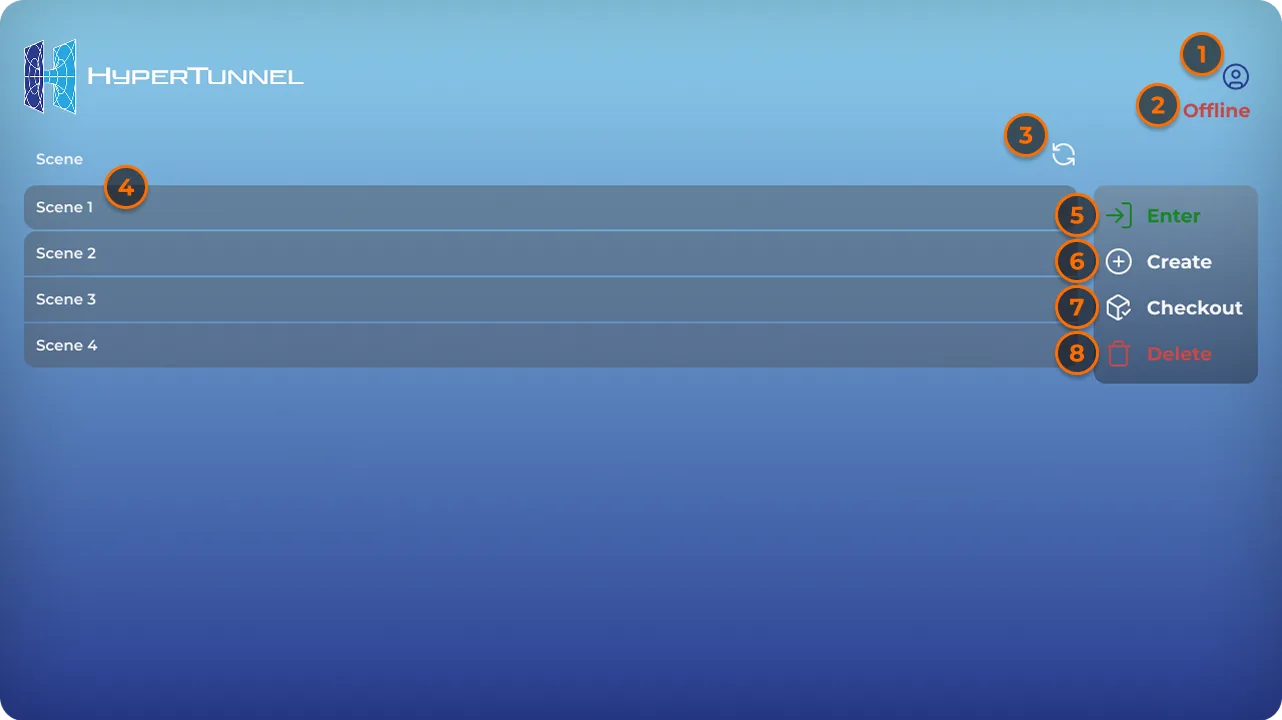
| Control | What it does |
|---|---|
| Person icon (top right) | Your username and business, and Sign Out (see Sign In / Sign Out) |
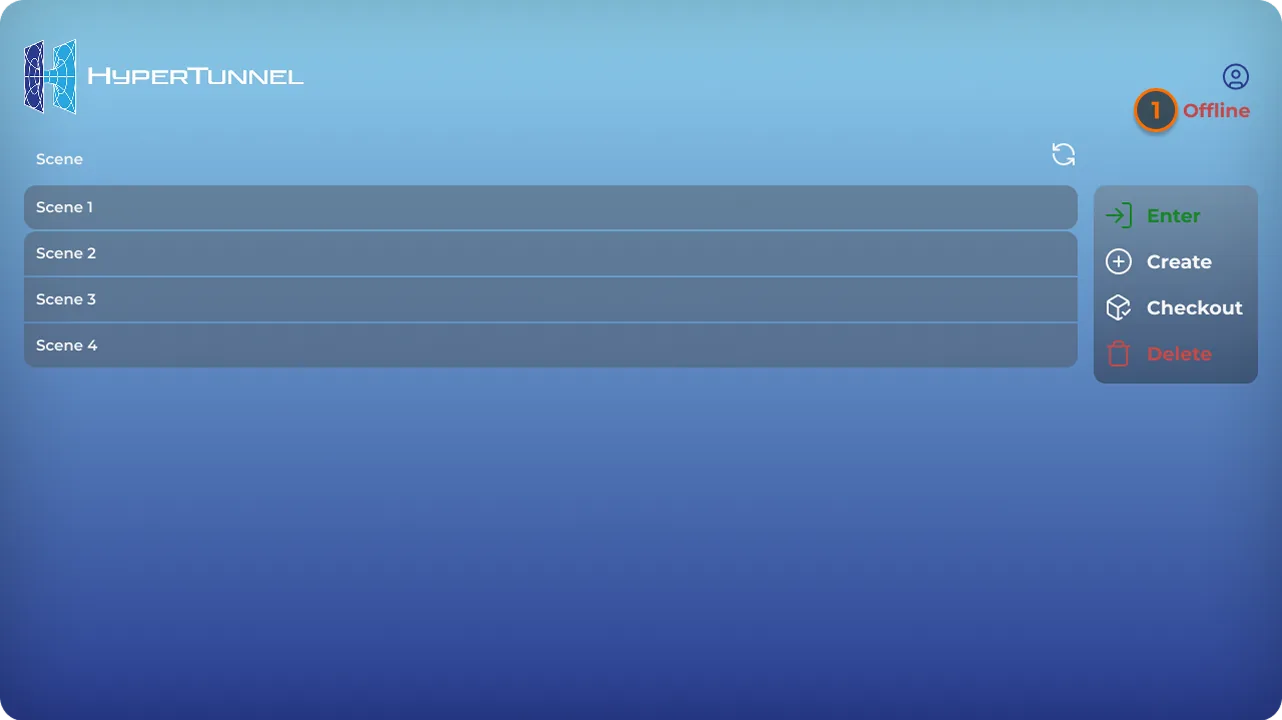
| Offline | Shown when you are signed in offline (see Offline Mode) |
| Refresh | Reloads the list. Online, the list also refreshes itself every 10 seconds; the countdown shows beside it |
| Enter | Enters the selected job (see Enter Job) |
| Create | Creates a job (see Create Job) |
| CheckOut / CheckIn | Takes a job for offline work, or returns it (see Check In/Check Out) |
| Delete | Deletes the selected job (see Delete Job) |
| Gear (bottom right) | Lobby Settings |
Select a job by tapping its name. Enter is greyed out when you cannot enter the selected job, for example when someone else has it checked out, or when you checked it out yourself and are online.
You can also manage jobs in the Web Console (see the Web Console's Job List).
On a headset, the job list floats in front of you. Press the button on your left wrist to bring it back in front of you.
Create Job
A job is a shared workspace for a task, a service ticket or a project. Create one from the app's job list, or from the Web Console (see Job List).
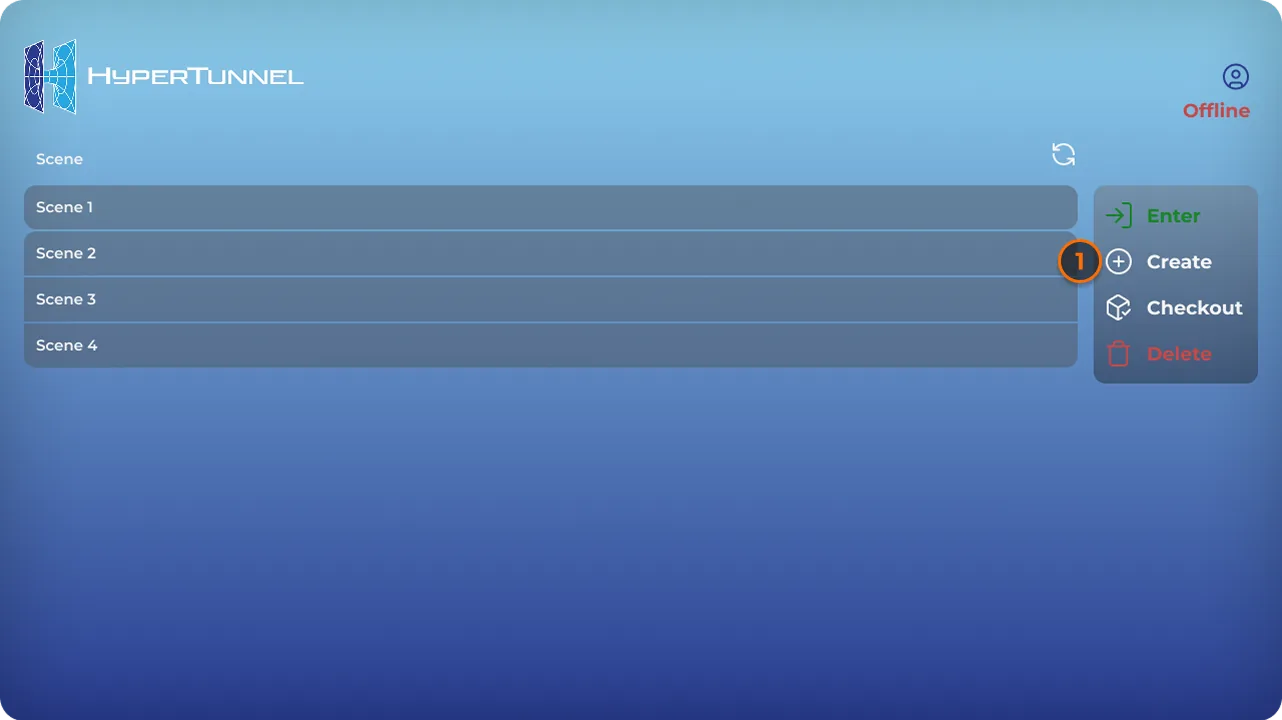
- On the job list, tap Create. The Add New Job window opens.
- The name is filled in with a generated name such as
26285-01: the year and day of the year, then a number for that day. Keep it or type your own. - Tap Create Job, or Cancel.
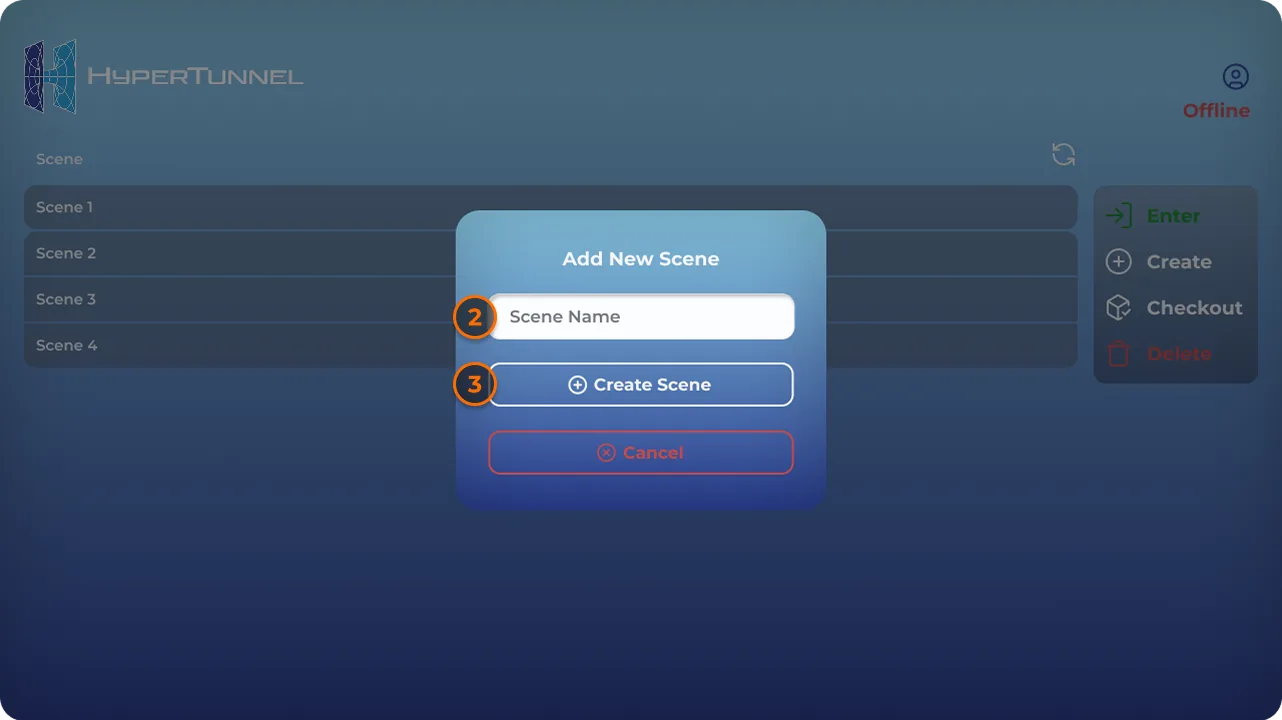
The job appears in the job list. Job names follow the rules in the Web Console's Job List, and must be unused in your business.
Offline, the job is created on your device and is checked out to you (see Offline Mode).
Delete Job
- On the job list, select the job.
- Tap Delete.
- "Confirm to Delete Job …" asks you to check. Tap Confirm, or Cancel.
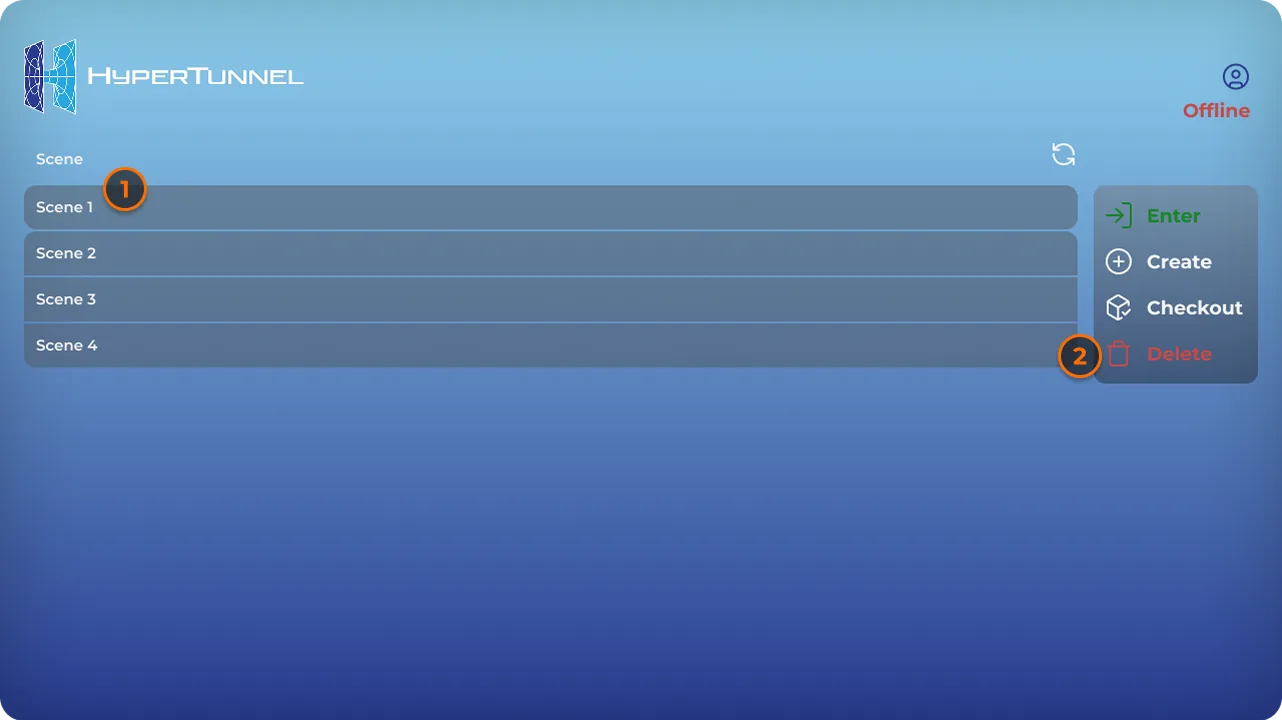
Deleting a job cannot be undone. The job's copy on your device is removed too.
- Delete is available for a job nobody has checked out, or one checked out to you. A Business Admin can also delete a job that someone else has checked out.
- "Job is currently being processed. Please try again later" means HyperTunnel is working on the job, for example exporting or duplicating it. Try again later.
- Offline, the deletion is applied the next time you sign in online.
You can also delete jobs in the Web Console (see Job List).
Check In/Check Out
Checking out a job copies it to your device so you can work on it offline. While it is checked out to you, nobody else can enter it. Checking it in sends your changes back and frees it for everyone.
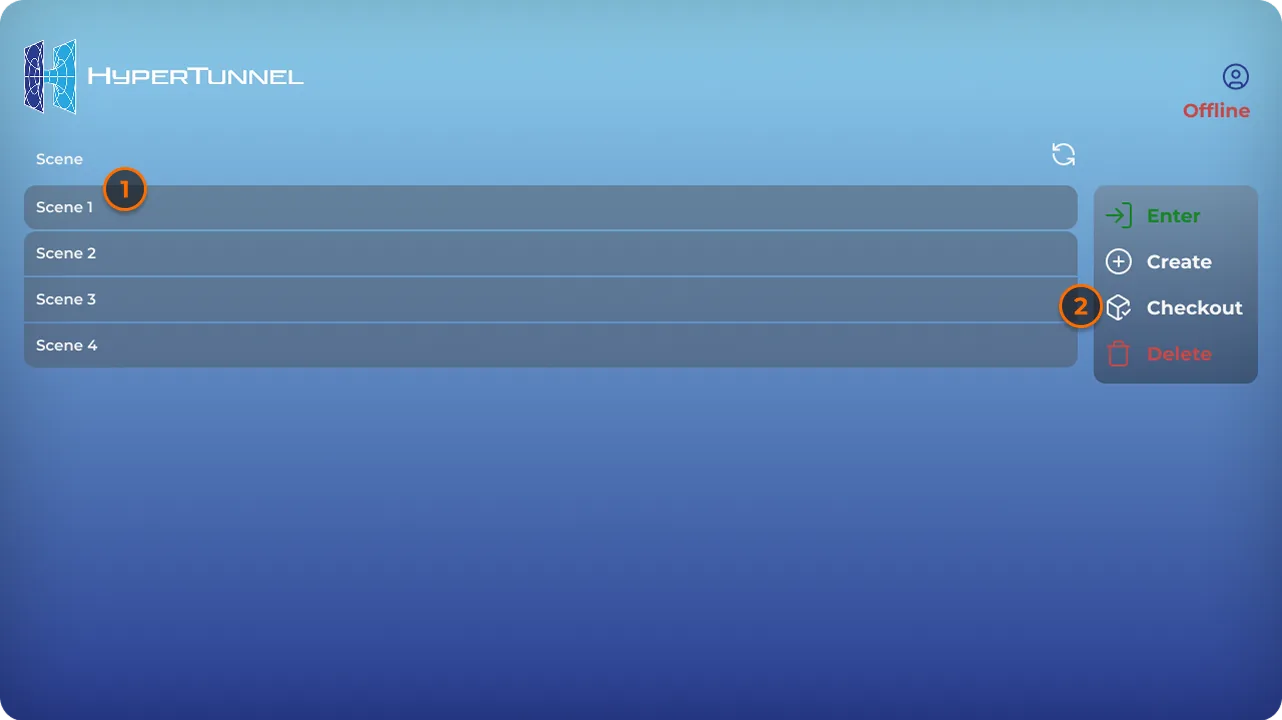
Check out
- While online, select a job on the job list.
- Tap CheckOut. The app downloads the job ("Preparing...").
- "Job … check out successful" confirms it.
You can now enter the job only while offline (see Offline Mode). Online, Enter is greyed out for it.
A job that HyperTunnel is working on, or that someone else has checked out ("Checked out by …"), cannot be checked out.
Check in
- While online, select the job. The button now reads CheckIn.
- Tap CheckIn.
- "Job … check in successful" confirms it.
A Business Admin can check in a job that someone else has checked out, for example when that person is away. The admin's device has no copy of the job, so the app asks first: "Failed to find local data to check in. Server data will be unchanged. Proceed anyway?" Tap Confirm to free the job. Changes made on the other device are not kept.
CheckOut and CheckIn need a connection.
Offline Mode
Offline mode lets you keep working on a job without an internet connection, for example at a site with no signal. Check the job out first, while you are online (see Check In/Check Out).
Before you go offline
You must have signed in online at least once on this device, as the same user and with the same password. That first online sign-in is what stores what the app needs to sign you in offline.
How you go offline
When you sign in, the app checks the connection. If it cannot reach HyperTunnel within a few seconds, it signs you in offline. The red Offline label appears under the person icon.
If you lose the connection later, while signed in online, the app does not switch to offline mode. In a job you return to the job list with "Disconnected from server. Please try again."
What you can do offline
- Enter a job checked out to you, and use the tools that work offline. Voice, casting and live streams need a connection.
- Create a job. It is created on this device and counts as checked out to you.
- Delete a job. The deletion is applied the next time you sign in online.
- Refresh the list.
The job list shows only the jobs checked out to you on this device, and the jobs you created offline. CheckOut and CheckIn need a connection.
Going back online
- Sign out.
- Sign in again with a connection.
The app then sends what you did offline. A report lists the jobs created and deleted, any that failed, and any Conflict Checked-In Jobs: jobs someone else checked in while you had them. Your offline changes to those are not kept. A job you created offline is added to the job list, still checked out to you: check it in to share it.
If you cannot sign in offline, you see "Failed to sign in offline."
Lobby Settings
Open Settings with the gear at the bottom right of the sign-in screen or the job list. (Inside a job, Settings is in the menu instead; see Settings.)
| Setting | What it does |
|---|---|
| Version | The app version, for example "Version 2026.5.1". Quote it when you contact support |
| Torch | iPad and iPhone only. Turns on the torch in AR (see Torch Mode) |
| Network Diagnostics → Diagnose | Checks your connection (see below) |
| Reset Cache | Deletes the job files downloaded to this device. They download again when you next enter a job. Jobs you have checked out are kept |
| Quit App | Closes the app, after "Are you sure you want to quit the app?" |
| Save Changes | Closes the window. Settings apply as soon as you change them |
Checking your connection
Tap Diagnose. "Running network diagnostic..." shows while it runs, then the result:
- Overall: Good, Usable or Poor.
- Latency, Jitter, Loss, Download and Upload, each with its rating. Download and Upload are measured only once you have signed in.
The app also runs this check when you sign in, and warns you if the connection looks poor.
Use Reset Cache only when a job's content will not load. Do not use it while a scan or a check-in is still uploading.