Moving Around
- iPad and iPhone
- Meta Quest and HTC VIVE Focus Vision
You move by moving the device: walk, and turn the device to look around. This works in AR mode and in VR mode. There are no on-screen controls for moving. To go to another location, use Jump.
Headsets are used with your hands; controllers are not supported.
| Way to move | How | More |
|---|---|---|
| Walk | Walk in your play space | — |
| Teleport | Right hand: finger gun, tuck your thumb, release | Teleport |
| Rock Climb | Pinch empty space with one hand and pull | Rock Climb |
| World Rotate | Pinch empty space with both hands and turn | World Rotate |
| Jump | Choose another location from the menu | Jump Locations |
Rock Climb is on when you enter a job; World Rotate is off. Both go back to that when you leave the job.
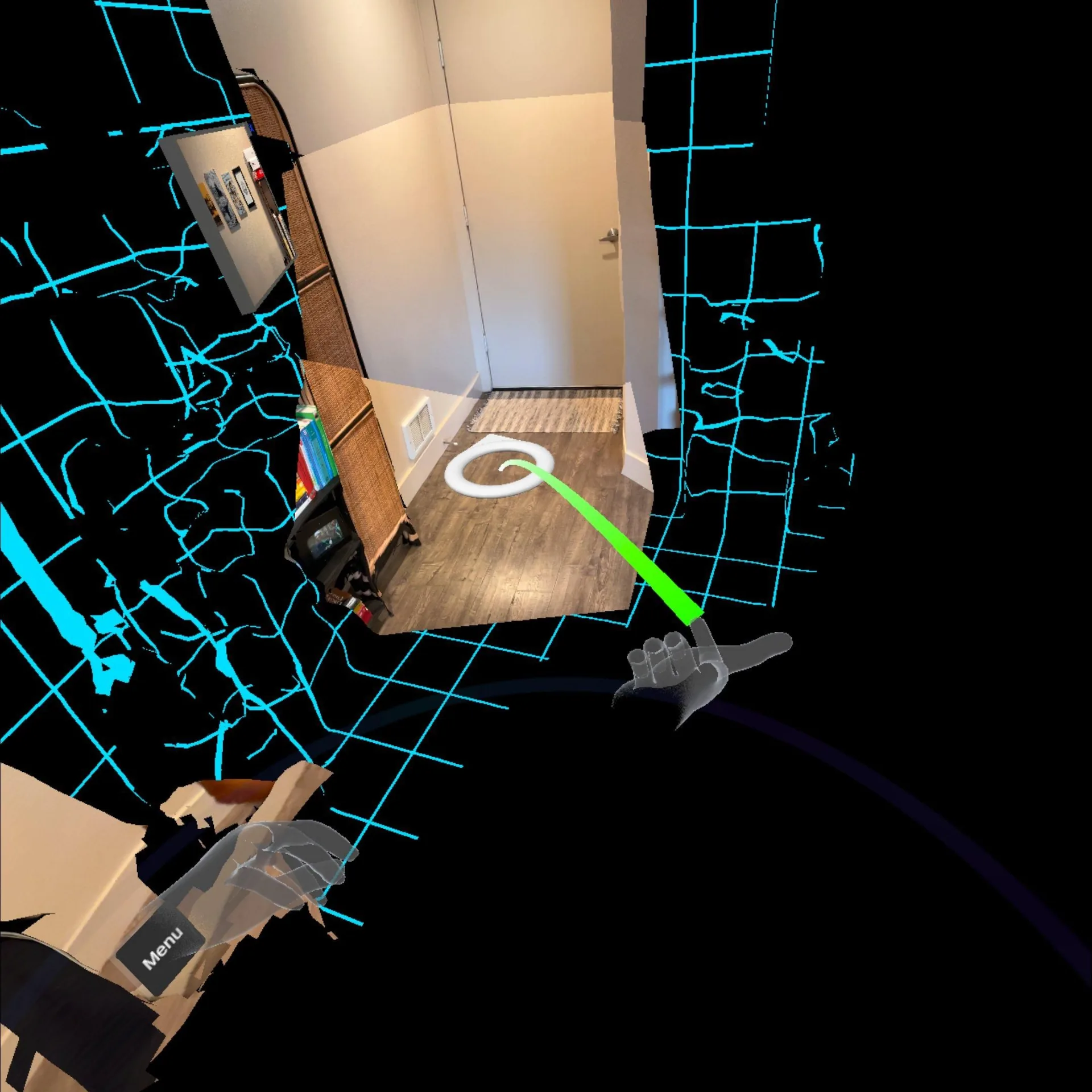
Teleport
Teleport moves you to a spot on the floor. It uses your right hand.
- Hold your right hand palm up, with your index finger and thumb out and your other fingers curled, like a finger gun. A curved ray comes from your hand to a ring on the floor.
- Aim the ring where you want to go. You can turn your hand; the ray stays on.
- Tuck your thumb against your index finger. The target locks: it stops following your hand.
- Release your thumb. You move to the target, facing the way the arrow on the ring points.
To aim again, relax your hand and make the finger gun again.
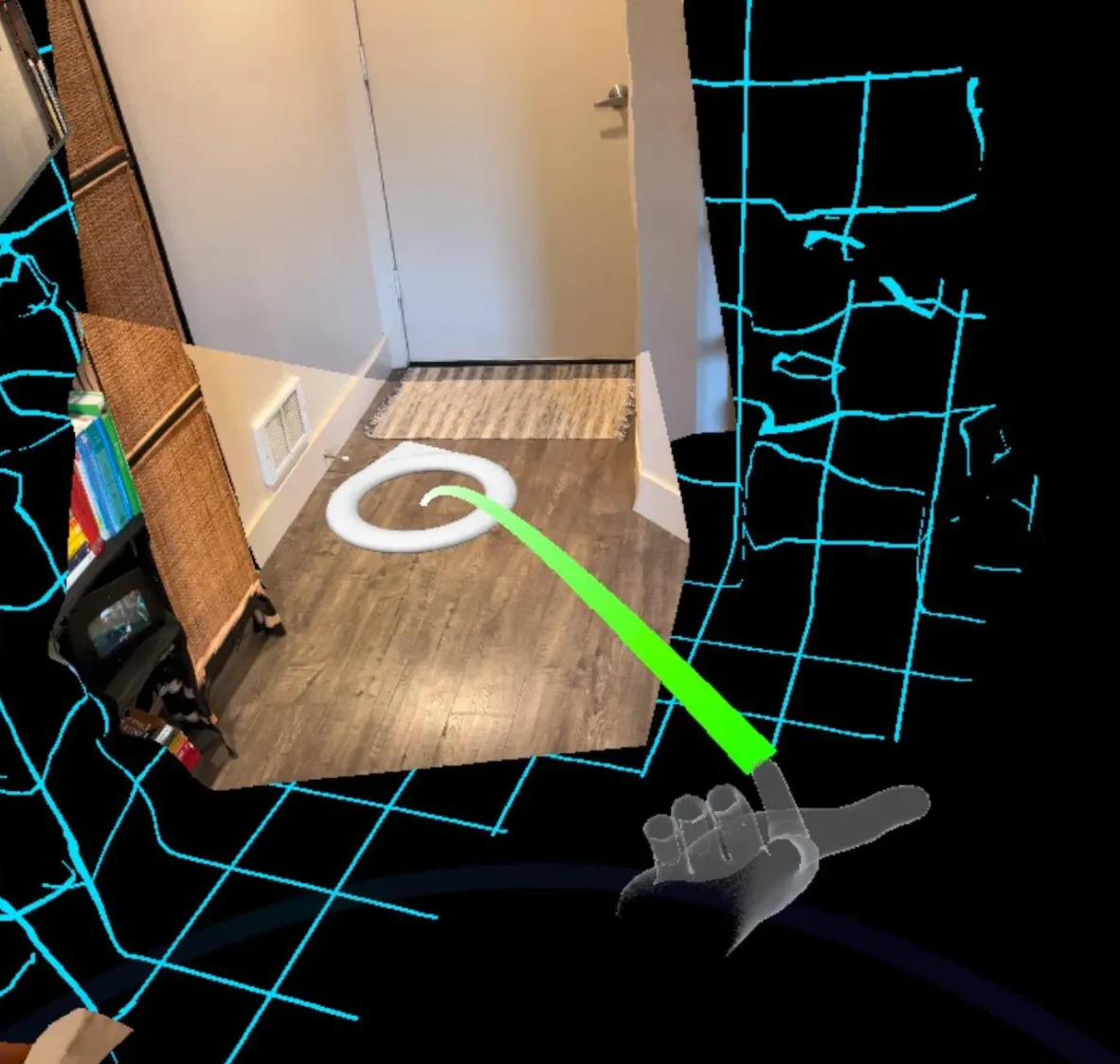
- To cancel, curl your index finger, lower your hand, or move it out of view.
- You cannot teleport onto walls or steep surfaces.
- Poking the menu with your fingertip never starts a teleport.
If the ray stays on when you do not want it, turn your palm up or drop your hand.
Rock Climb
Rock Climb lets you pull yourself through the job, as if climbing. It is a switch in the menu, on when you enter a job.
- Pinch your thumb and index finger in empty space, away from any object or panel.
- Pull your hand. You move the opposite way, in any direction, including up and down.
- Let go to stop.

- To turn it off, poke Rock Climb in the menu. The button turns red with an ×. Turn it off if you keep moving by accident.
- A pinch on an object grabs the object instead. A pinch that started for climbing cannot pick up objects.
- With World Rotate on, a two-handed pinch also turns the world.
- Rock Climb is on again the next time you enter a job.
World Rotate
World Rotate lets you turn the job around you without turning your body. It is a switch in the menu, off when you enter a job.
- Poke World Rotate in the menu to turn it on. The button turns white.
- Pinch in empty space with both hands.
- Move your hands around each other. The world turns around you, level with the floor.
- Let go to stop.

- World Rotate works whether Rock Climb is on or off. With Rock Climb on, the same two-handed pinch also moves you.
- World Rotate is off again the next time you enter a job.
Jump Locations
A job can have several locations. Jump takes you to another one.
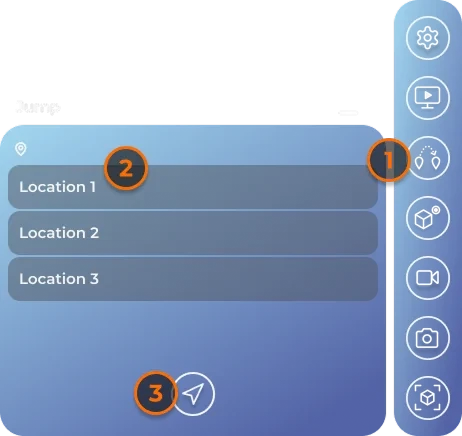
- Open Jump in the menu. The panel title shows your current location.
- Choose a location from the list. It includes Homebase, the job's virtual location.
- Press the jump button (an arrow). The location loads, and you arrive.
Where you arrive
- If you have been to that location before, you return to where you were.
- On your first visit, if someone is there in AR, you arrive about 3 m behind them. Otherwise you arrive at the location's starting point.
- On a headset, an object you are holding comes with you.
iPad and iPhone: AR and VR
You are in AR only at the location where you entered the job in AR. Every other location, including Homebase, is VR. Jumping back to your AR location returns you to AR; the app calibrates again (see Calibration).
HyperNotes recorded elsewhere
When you play a HyperNote recorded at another location, the app asks "Jump to location … to play HyperNote?". Confirm to jump there and play it (see HyperNote).