Objects
See also: Assets
Job objects are the files and markers placed in a job. Everyone in the job sees them, and anyone can move, scale or delete them (see Interactions). They stay in the job until someone deletes them.
| Object | How it gets into the job | What you can do |
|---|---|---|
| 3D model | From the Shelf | Tap it to switch between its views, such as mesh and point cloud |
| Image | From the Shelf, or with Photo | Move, scale, delete |
| Video | From the Shelf, or with Video | Tap to play or stop, for everyone |
| Audio | From the Shelf | Tap to play or stop, for everyone. Cannot be scaled |
| From the Shelf | Turn pages and zoom, for everyone (see PDF Viewer) | |
| Video monitor | From Stream | Shows someone's live camera (see Viewing a Live Video Stream) |
| Arrow | From the Arrow button on a headset | Point at something (see Arrows) |
The Shelf holds the files registered to the job in the Web Console, and every photo and video taken in it (see Spawn from Shelf).
A job can also have an environment, a 3D model or Gaussian splat set in the Web Console, around you. It is not an object: it cannot be grabbed.
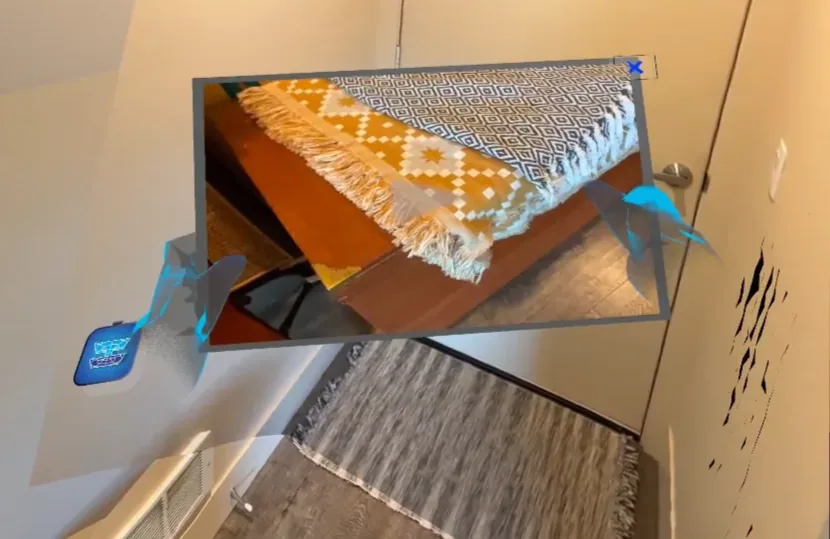
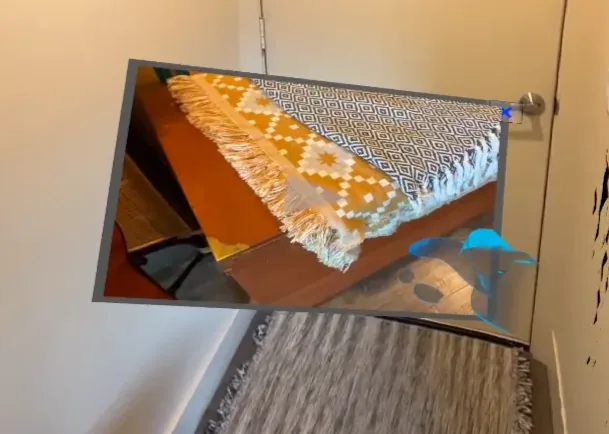
Interactions
Anyone in the job can move, scale and rotate objects. Everyone sees the change.
- Meta Quest and HTC VIVE Focus Vision
- iPad and iPhone
Headsets are used with your hands; controllers are not supported.
- Grab close up: touch the object and pinch your thumb and index finger. Move your hand, then let go.
- Grab from a distance: each hand casts a ray. Point it at the object and pinch to grab. Push or pull your hand to move the object farther or closer.
- Scale and rotate: grab the object with both hands, then spread or close your hands to scale it, and turn them to rotate it.
- Tap: a quick pinch. It plays or stops a video or audio, and changes how a 3D model is shown.
- Buttons and panels: poke them with your index fingertip.
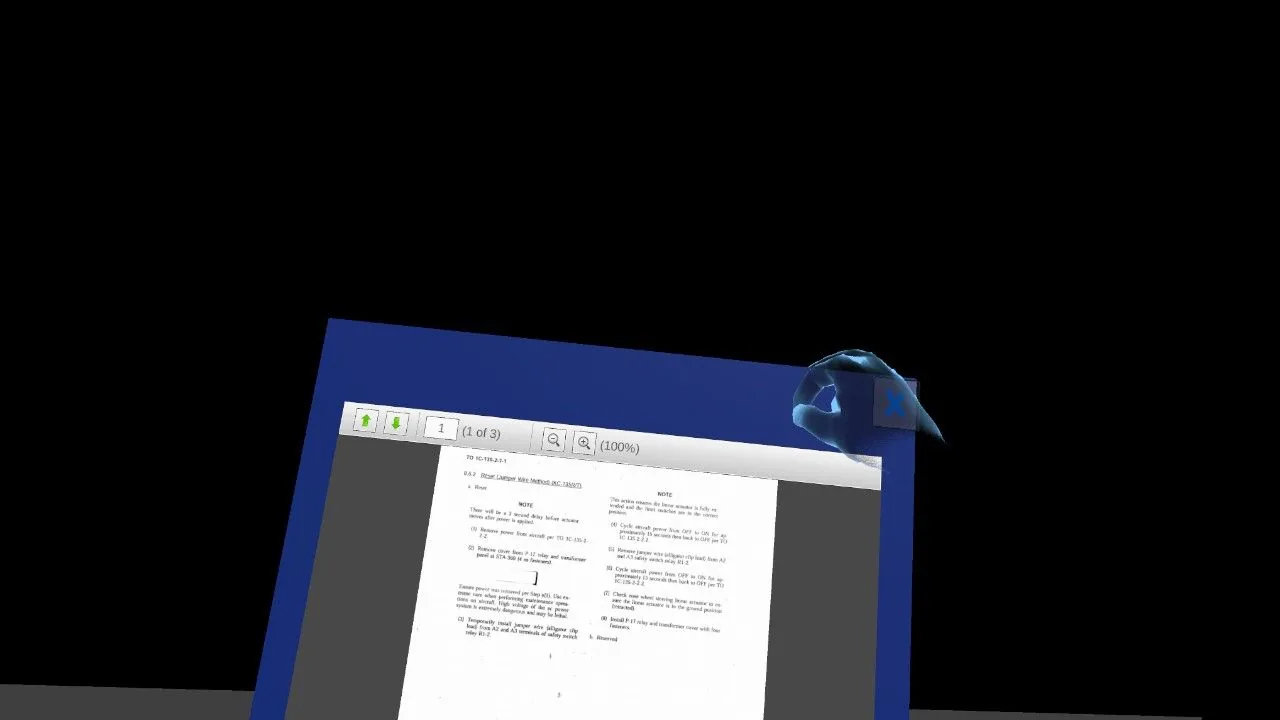
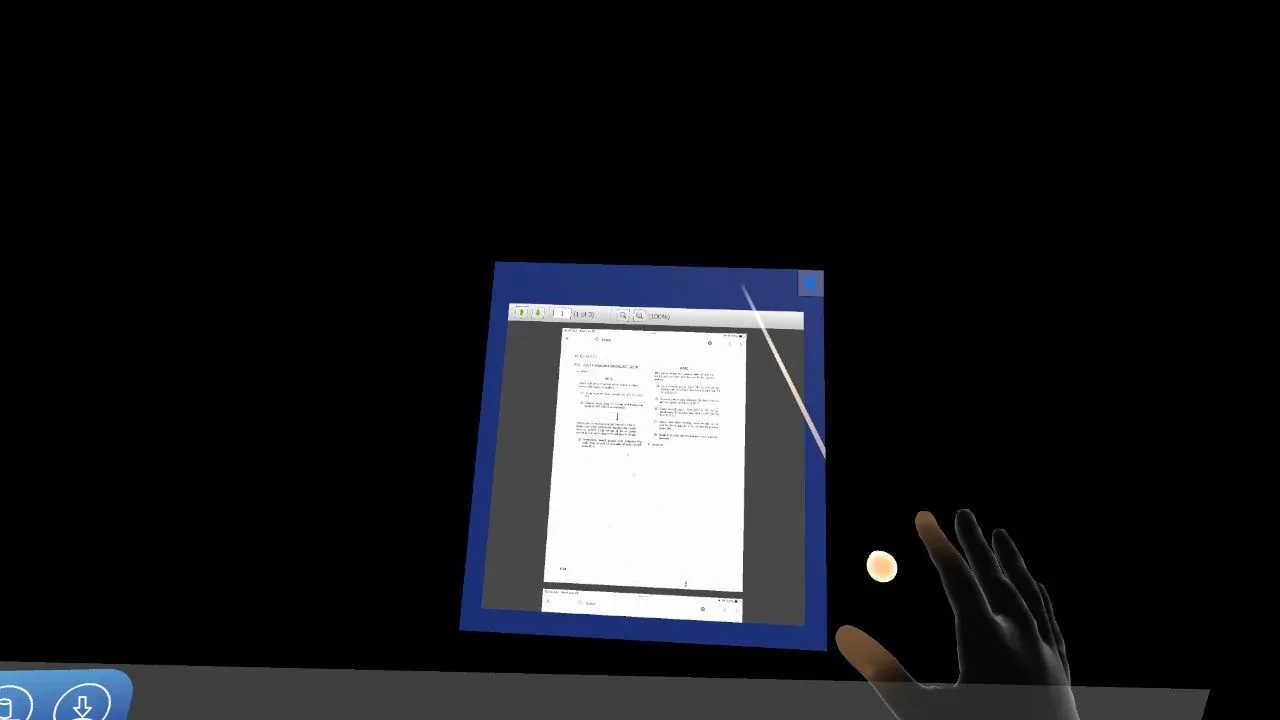
A pinch that starts in empty space moves you instead, when Rock Climb is on (see Moving Around).
- Tap an object to play or stop a video, or change how a 3D model is shown.
- Touch and hold an object, then drag it with one finger.
- With a second finger, pinch to scale it and twist to rotate it.
Objects that cannot be scaled
Audio objects, HyperNotes and scanned meshes keep their size. You can still move them.
Deleting an object
- Tap or poke the × at the top right of an image, video, audio, PDF, arrow or video monitor, or
- shrink the object until it turns red, then let go (see Scale to Delete).
Either way the object is deleted for everyone. A deleted file stays on the Shelf, so you can place it again.
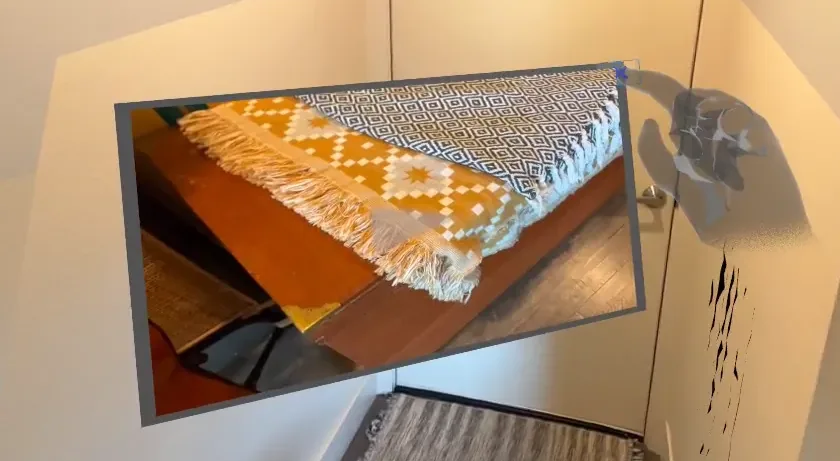
Scale to Delete
Shrink an object until it turns red, then let go, and it is deleted.
- Meta Quest and HTC VIVE Focus Vision
- iPad and iPhone
- Grab the object with both hands.
- Bring your hands together. When the object is small enough, it turns red.
- Let go with both hands. The object is deleted.
- Pinch the object smaller with two fingers until it turns red.
- Lift your fingers. The object is deleted.
The object is deleted for everyone in the job, and it cannot be undone. A file from the Shelf stays on the Shelf, so you can place it again.
- Changed your mind? Make the object bigger again before you let go. The red goes away and nothing is deleted.
- An object turns red at about one fifth of its original size for arrows and 3D models, and about 15% for images, videos, PDFs and video monitors.
- Only shrinking deletes. Moving an object that is already small does not.
- Audio objects, HyperNotes and scanned meshes cannot be scaled, so they cannot be deleted this way. Images, videos, audio, PDFs, arrows and video monitors can also be deleted with their ×.
- Only you see the red; others see the object disappear when you let go.
Spawn from Shelf
The Shelf holds the job's files: those registered in the Web Console as Shelf Objects (see Upload Assets), and every photo and video taken in the job. Spawn places one in the job.
The Shelf is on headsets, and on iPad and iPhone in VR mode. It is not in AR mode.
- Open Shelf in the menu.
- Select a file. The Type column shows its kind.
- Press the spawn button. The object appears in front of you, at its original size.
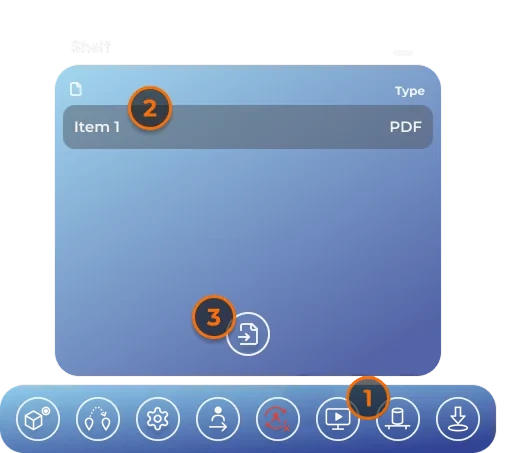
- The spawn button is greyed out until the selected file has downloaded to your device.
- While a HyperNote is playing or being saved, or someone else is spawning, spawning is refused: you hear an error sound and nothing appears. Try again shortly.
- Spawned objects are like any other: everyone sees them, and anyone can move or delete them. Deleting one leaves the file on the Shelf.
Photo
On site, in AR mode, take a photo of what you see. It appears in the job for everyone, and is added to the job's Shelf.
- Point your iPad or iPhone at what you want to show.
- Tap Photo in the menu. The photo is taken at once; there is no panel.
- The photo appears in front of you, sized to fit before the nearest wall. Others see it straight away.

Photos are named "Image", "Image (1)", "Image (2)" and so on. Like other objects, anyone can move, scale or delete them. A deleted photo stays on the Shelf.
Photo is not available in VR mode or on headsets.
Video
On site, in AR mode, record a video of what you see, with sound. It appears in the job for everyone, and is added to the job's Shelf.
- Tap Video in the menu. The panel shows a timer.
- Tap the record button (red dot) to start.
- Tap the save button (disk) to stop and save.
- The video appears in front of you. Tap it to play or stop it, for everyone.
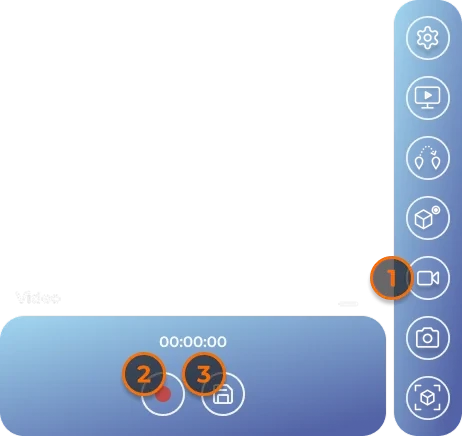
- The video keeps the orientation, portrait or landscape, that you started in.
- Only one person can record a video in a job at a time. If someone else is recording, you hear an error sound: wait and try again.
- Videos are named "Video", "Video (1)" and so on. Like other objects, anyone can move, scale or delete them. A deleted video stays on the Shelf.
Video is not available in VR mode or on headsets.
PDF Viewer
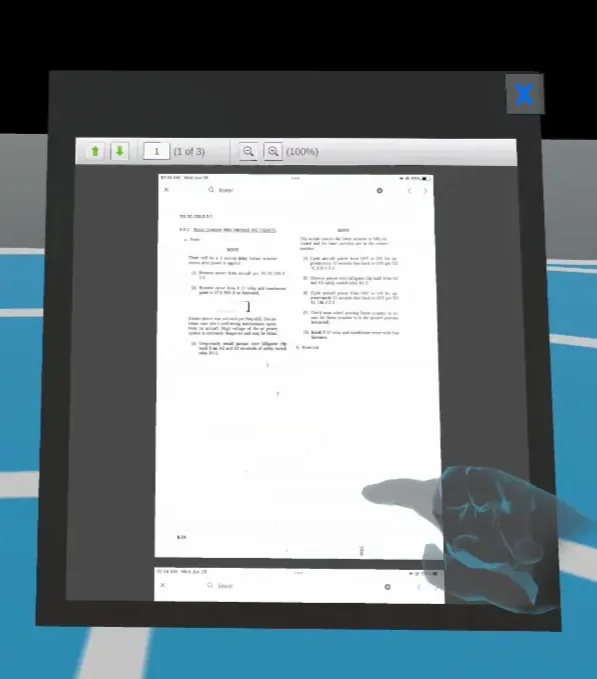
A PDF in a job is a document everyone reads together. When someone turns the page or zooms, everyone sees it.
Place a PDF
PDFs come from the job's Shelf. Register them in the Web Console first (see Upload Assets).
- Open Shelf in the menu (on a headset, or an iPad or iPhone in VR mode).
- Select a PDF; its Type is PDF.
- Press the spawn button.
Read it
The toolbar on the PDF has:
- page up and page down, and the page number ("n of N");
- zoom out and zoom in, and the zoom level.
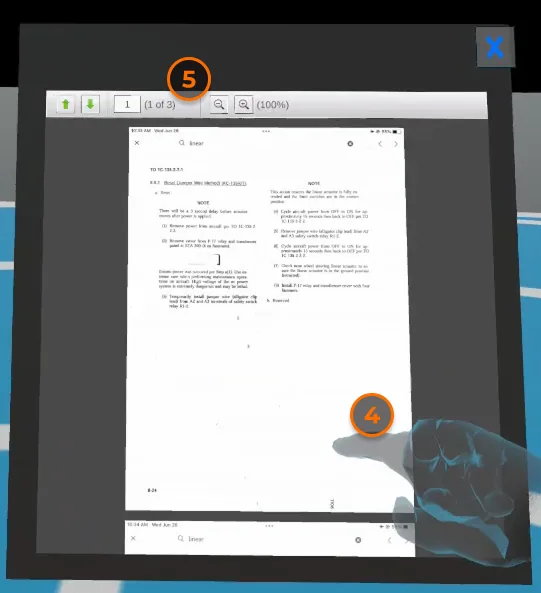
Move and scale the PDF like any other object (see Interactions). Its × deletes it for everyone; the file stays on the Shelf.
Arrows
Arrows point others to something in the job, such as a part to check.
- Poke Arrow in the menu. A red arrow appears in front of you.
- Grab it and put it where you want it. Turn it to point the right way.
- Poke Arrow again for more arrows.

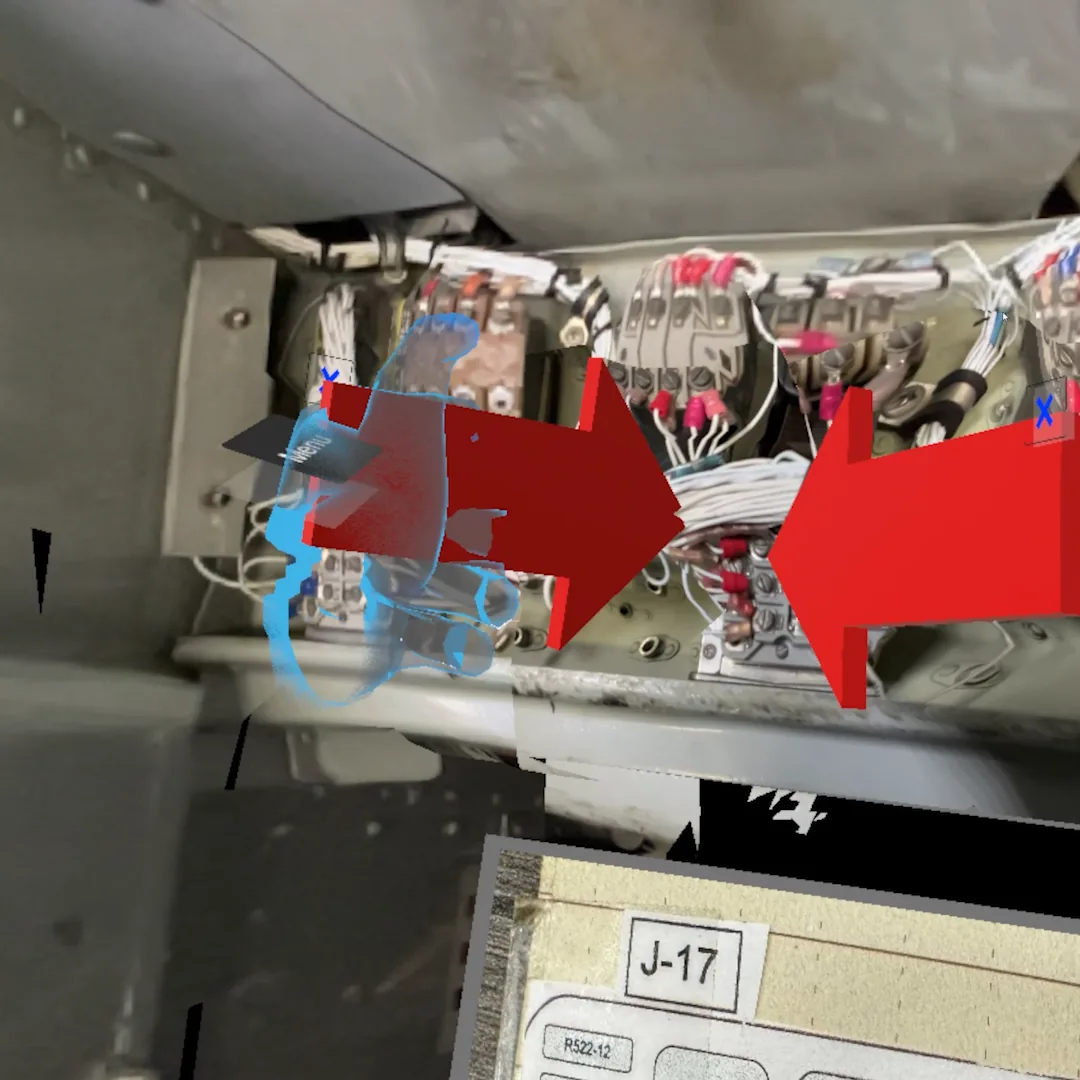
- Everyone in the job sees the arrows, including iPad and iPhone users, who can move them too.
- Arrows stay in the job, and are recorded in HyperNotes.
- To remove an arrow, poke its ×, or shrink it until it turns red and let go (see Scale to Delete).
Placing arrows is available on headsets only.