Scanning
AppiPad & iPhoneAR mode
See also: Entering a Job
A scan turns a real place into a textured 3D model of it, a digital twin. Remote users then see the place as it really is, and people on site can compare the model with the room.
- Scan with an iPad or iPhone in AR mode, at a location you entered on site. The device needs a LiDAR scanner (iPad Pro, iPhone Pro).
- After you save, HyperTunnel processes ("bakes") the scan into a textured model. It evens out color and brightness between photos, and brightens scans taken in low light. A Business Admin can change these options in the Web Console (see Business Settings).
- Scanning again replaces the location's earlier scan.
- Scans can be downloaded from the Web Console (see Assets).
The steps and tips are in Scan. In a dark place, use Torch Mode.
Scan
AppiPad & iPhoneAR mode
Scan the location you are at, with an iPad or iPhone that has LiDAR, in AR mode.
Steps
- Enter the location in AR (see Location Selection). In a dark place, turn on Torch Mode before entering.
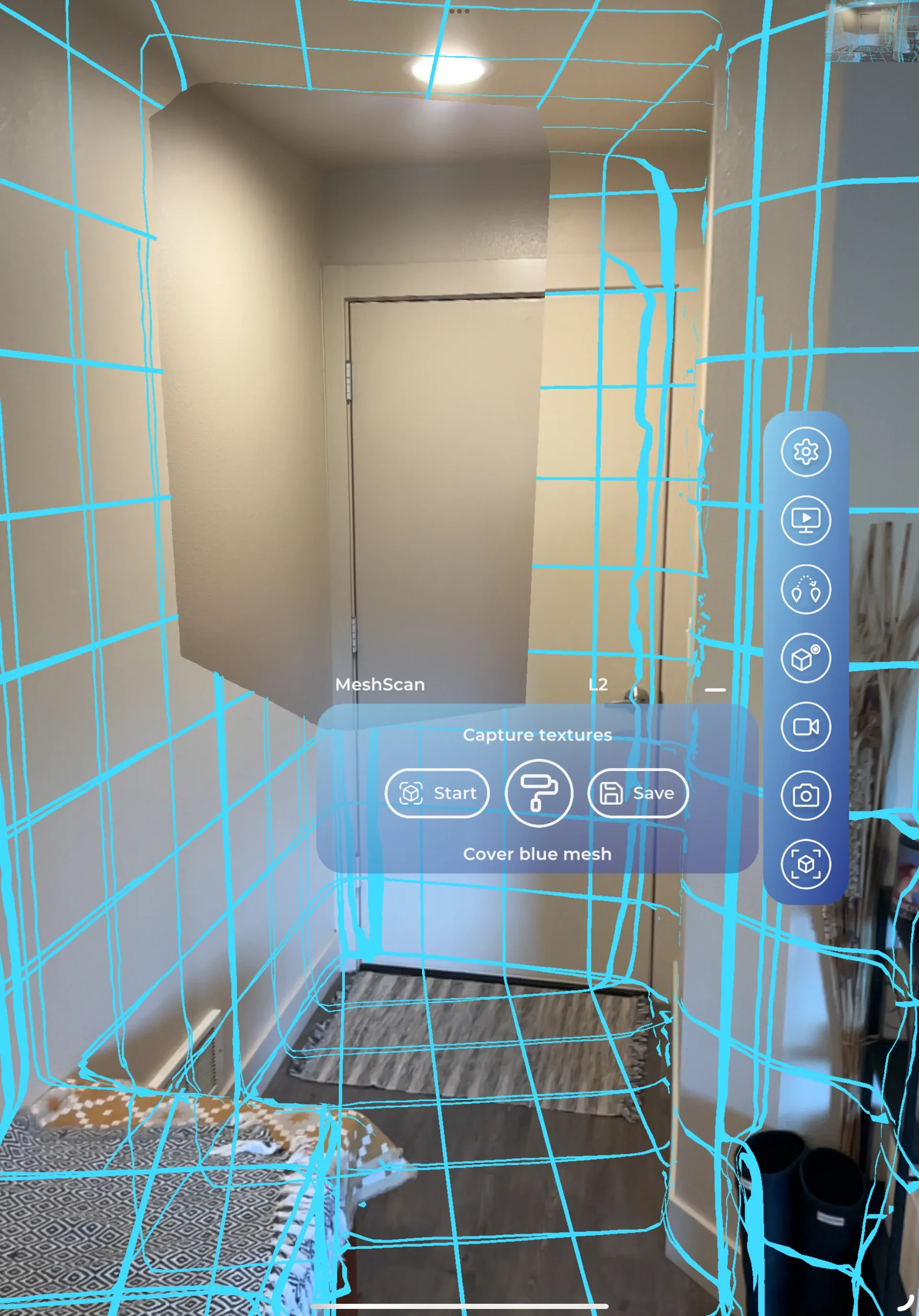
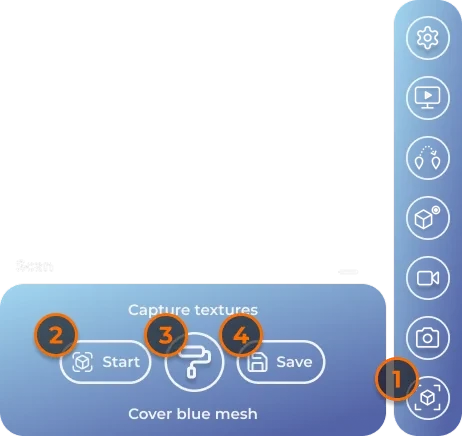
- Open Scan in the menu. The panel shows Start, a texture button and Save.
- Tap Start. The location's earlier scan is hidden, and a blue mesh grows over the surfaces as you move.
- Move around slowly until the blue mesh covers what you need ("Cover blue mesh"). Surfaces fill in once they have been seen from several directions.
- Optional: point at something important and tap the texture button (paint roller) to take a high-quality snapshot of it. The app takes pictures by itself as you move; a snapshot you take is used first where it covers a surface.
- Tap Save. "Mesh Scan will be saving in the background" shows, and you can carry on working. A chime plays when the upload finishes.
After you save
HyperTunnel processes the scan into a textured model. A plain version of the scan appears first; the textured one replaces it when processing finishes.
- The new scan replaces the location's earlier one. Anything you did not scan again is not kept.
- Closing the Scan panel, or switching to another tool, while scanning saves the scan.
- Only one person can scan in a job at a time. Meanwhile, nobody else can enter the job.
Tips for a good scan
- Walk the room's edge, then walk it again on a different line.
- Stay about 0.5–3 m from what you want textured. Beyond about 4 m, surfaces are not captured.
- Face the surfaces. A surface seen from the side is not captured.
- Slow down at details. Moving faster does not capture more.
- Look at floors and ceilings: walking over a floor does not capture it.
- Do not go from a bright area to a dark one during one scan. Brightness is fixed when you tap Start.
- Shiny, black and see-through surfaces scan poorly.
- Decide on the torch before you start: use it in a dark room. In a lit room, the room's lights give a better result.