iPad and iPhone
AppiPad & iPhone
Get the app from the App Store.
On an iPad or iPhone you choose, each time you enter a location, how to be there:
- AR mode, on site: the job's content appears on the real place, through the camera. The app calibrates to the location first (see Calibration).
- VR mode, from anywhere: you see the location's 3D scan and move around it by moving your device.
See Location Selection.
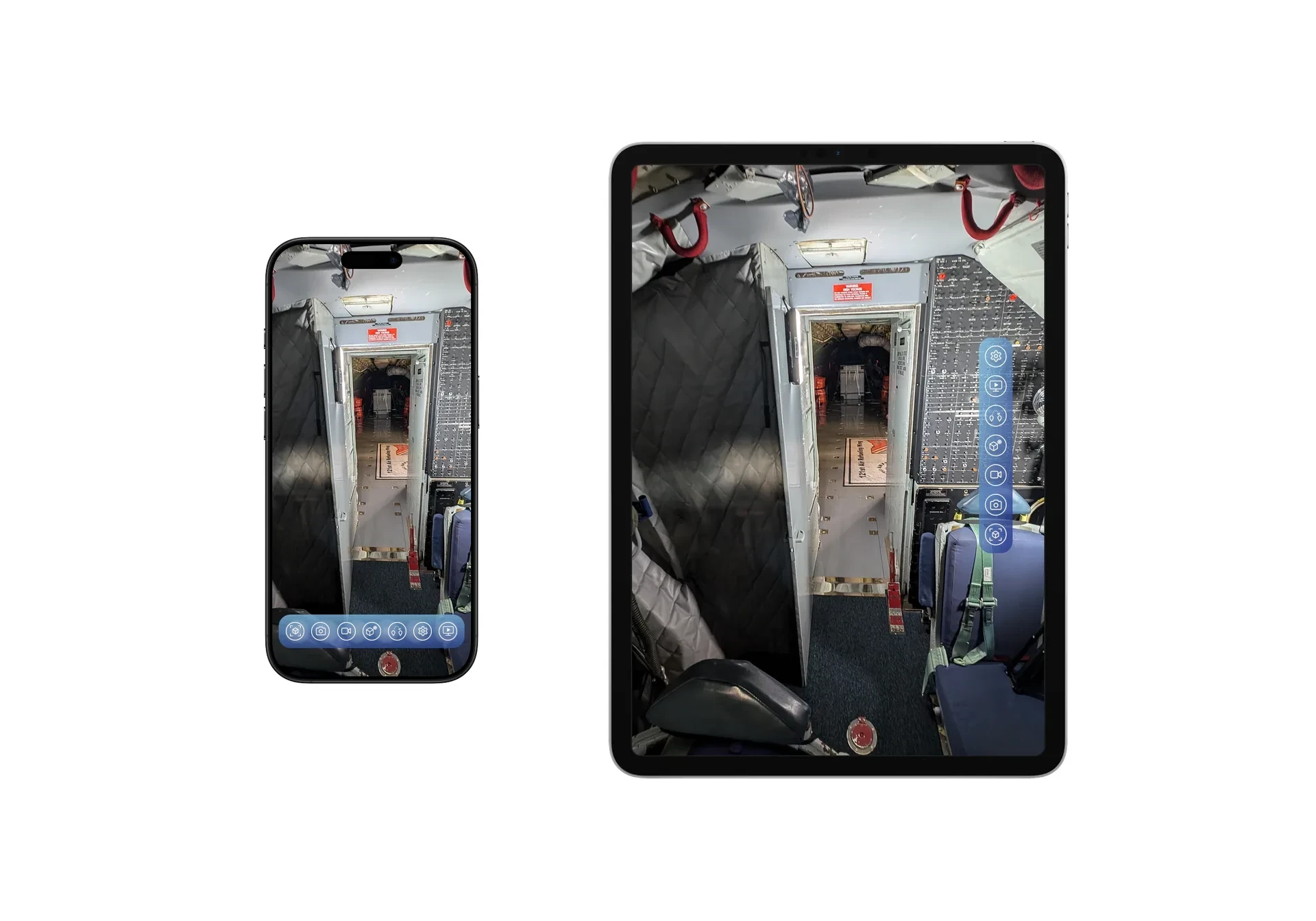
Tools by mode
| AR mode | VR mode |
|---|---|
| Settings, Stream, Jump, HyperNote, Scan, Video, Photo | Settings, Stream, Jump, HyperNote, Shelf |
See In a Job.
Only on iPad and iPhone
- Scan a location in 3D (needs a LiDAR device: iPad Pro or iPhone Pro).
- Photo and Video of the real place.
- Torch Mode for dark places.
- Entering a location in AR, and adding locations on site.
Layout
- iPad: the menu runs down the side of the screen, in either orientation.
- iPhone: the menu runs along the bottom, with separate layouts for portrait and landscape.
- Others see you as a tablet or phone showing your live camera (see Avatars).
Opening a job from the Web Console
With the app open and signed in, choose Enter Job in the Web Console on the same device, and the app opens the job (see Enter Job from the Web).