Meta Quest
AppMeta Quest
HyperTunnel runs on Meta Quest 3 and Meta Quest 3S. Get it from the Meta Quest store.
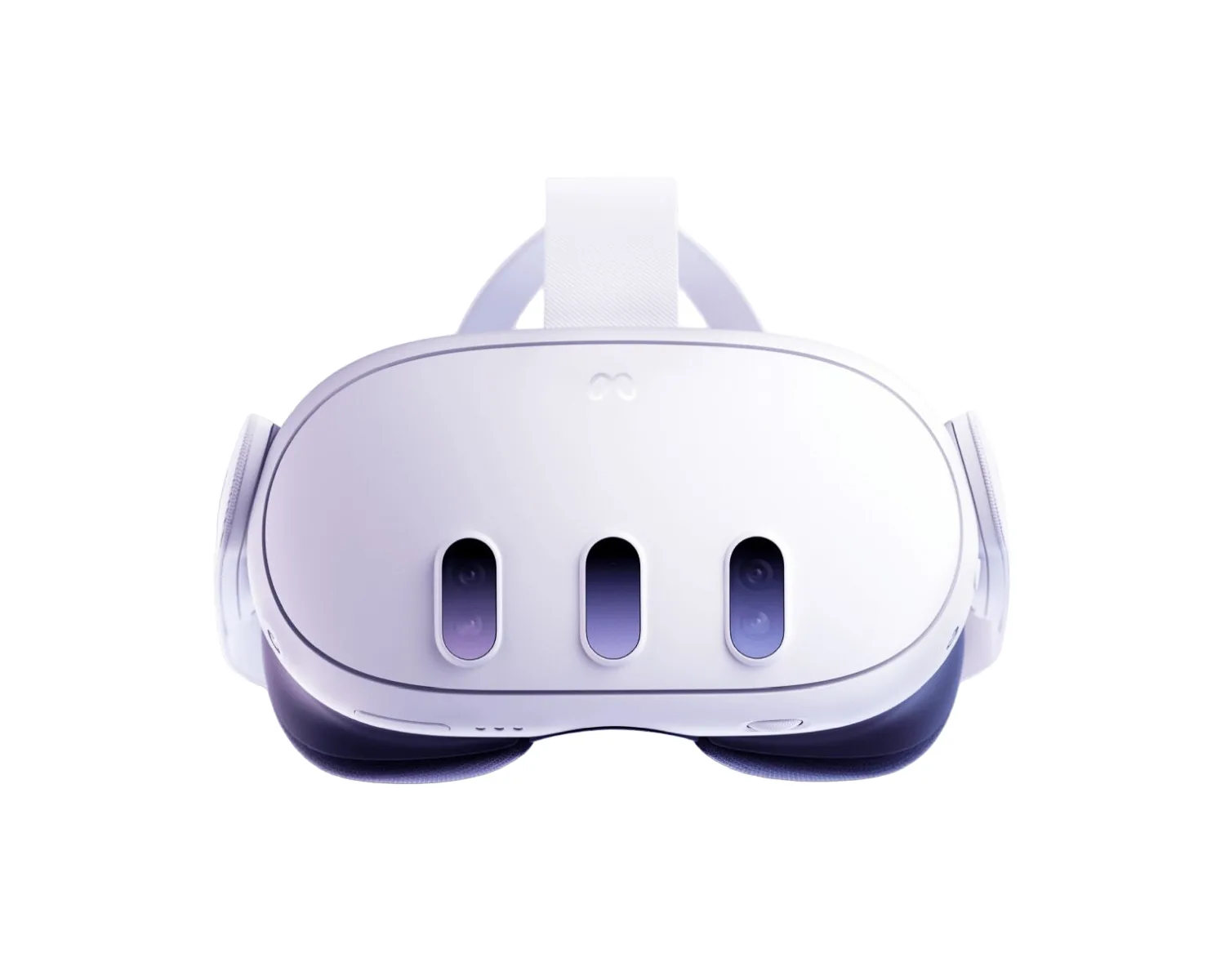
Hands, not controllers
HyperTunnel is used with hand tracking. Controllers are not supported. You pinch to grab, poke buttons with your fingertip, and use gestures to move (see Interactions and Moving Around).
In the lobby
- The lobby is see-through, so you can see your room, and read your authenticator code on your phone, without taking the headset off.
- Type on the app's floating keyboard.
- The button on your left wrist brings the lobby window back in front of you.
In a job
- You enter the job's Homebase in VR, and the menu opens in front of you (see In a Job).
- The menu has: HyperNote, Jump, Settings, Rock Climb, World Rotate, Stream, Shelf and Arrow.
- Move with Teleport, Rock Climb, World Rotate and Jump.
- Place files from the Shelf and point things out with Arrows.
- Spatial Audio is in Settings on headsets only.
- Others see you as a full-body avatar whose hands follow yours, and see your view when you share it (see Avatars).
Scan, Photo and Video are iPad and iPhone tools.
Opening a job from the Web Console
With the app open and signed in, open the Web Console in the Quest browser and choose Enter Job: the app opens the job (see Enter Job from the Web).