Signing In
You use one account in two places: the Web Console in your browser, and the HyperTunnel app. Signing in needs your username, your password, and a 6-digit code from an authenticator app on your phone. Set up your account in the Web Console first.
In the Web Console
The Web Console is where you manage jobs, assets and users.
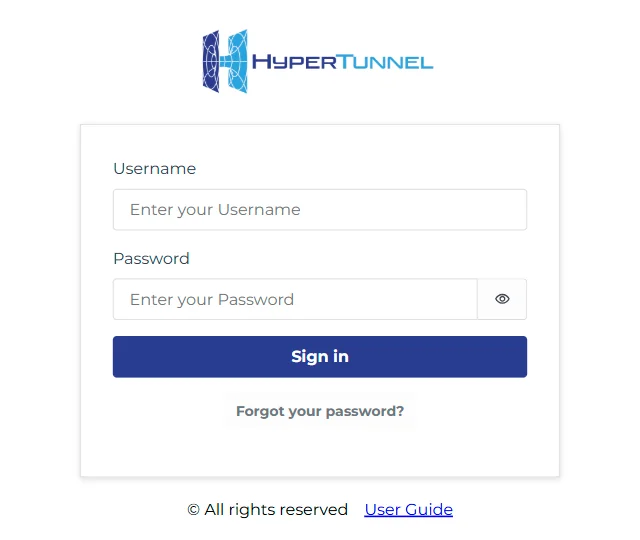
Your first sign-in
When a Business Admin adds you, you receive an email with your username and a temporary password.
- Enter your Username and the temporary Password, then click Sign in.
- On Change Password, choose your own password, enter it again in Confirm Password, and click Change Password.
- On Set Up Authenticator App, scan the QR code with an authenticator app such as Google Authenticator or Authy. (If you cannot scan it, copy the key shown under the QR code into the app.)
- Enter the 6-digit code the app shows and click Confirm.
You are signed in. Your authenticator app now has an entry labelled HyperTunnel with your username. An older entry may be labelled AWSCognito instead; it works the same.
Set up your authenticator here, in the Web Console, before using the app. The app asks you to finish account setup on the web if you have not.
Signing in
- Enter your Username and Password and click Sign in.
- On Confirm TOTP Code, enter the 6-digit code from your authenticator app and click Confirm.
The code changes every 30 seconds; use the one the app shows now. Codes come from your app, not by email.
Forgot your password
- On the sign-in screen, click Forgot your password?.
- Enter your username and click Send code. A code is sent to your email.
- Enter the Code, then your New Password twice, and click Submit.
Lost your authenticator
If you lose the phone or app that makes your codes, ask a Business Admin to Reset MFA for you (see Users). You receive a new temporary password and set up your authenticator again, as at your first sign-in.
Signing out, and the 60-minute session
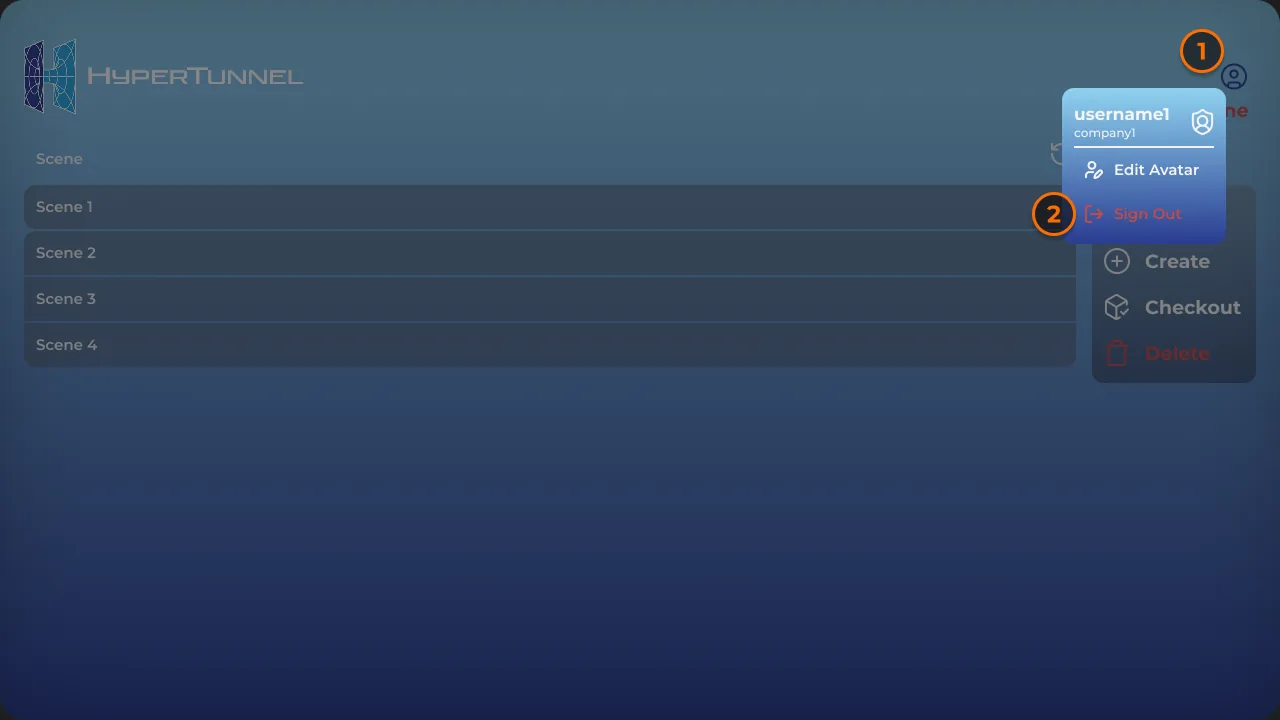
- To sign out, open the person menu (top right) and click Sign out.
- You are signed out automatically 60 minutes after you sign in, even if you are working, and without a warning. Save what you are doing before then. The sign-in screen tells you when this has happened.
- Signing out, in either way, signs out every Web Console tab open in that browser.
In the app
Use the same username and password as in the Web Console, after you have set up your account there (see Your first sign-in). Until you have, the app stops after your password with "Additional setup required. Please proceed with account setup through the HyperTunnel web app."
A session starts when you sign in and ends when you sign out. Most of the time you are online. If the app cannot reach HyperTunnel when you sign in, it signs you in offline instead (see Offline).
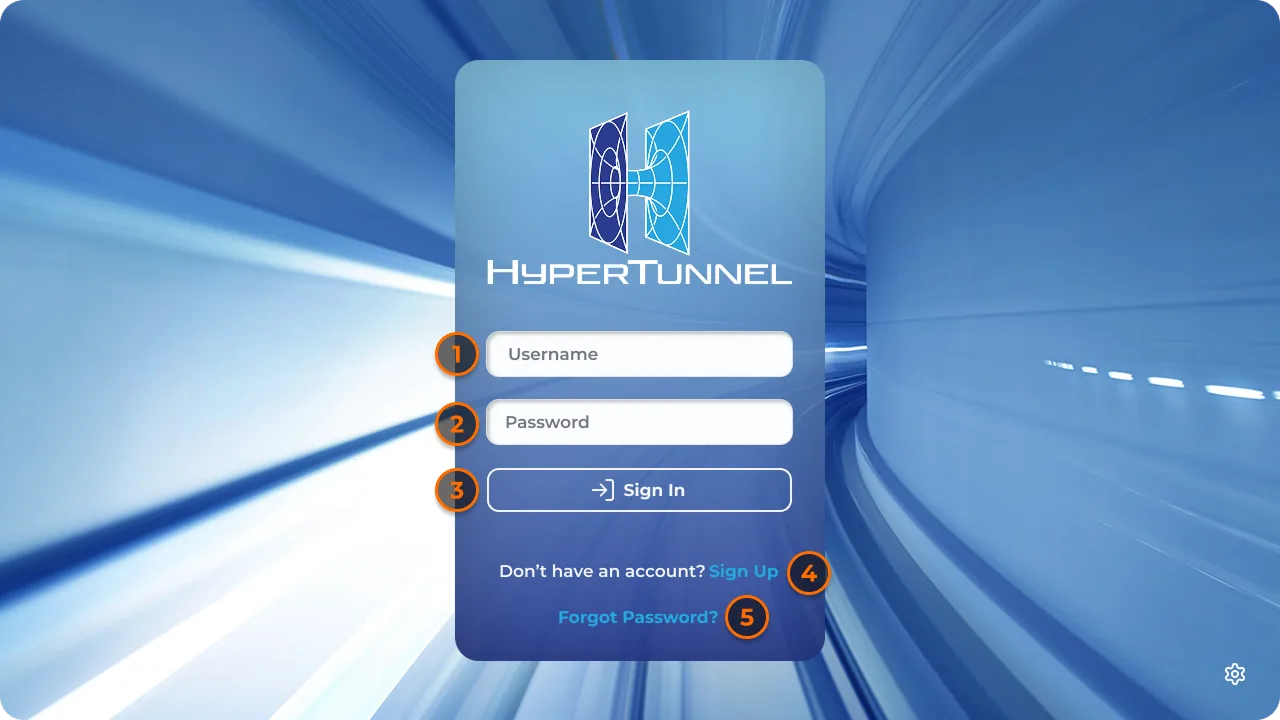
Sign in
- Enter your Username and Password.
- Tap Sign In.
- Enter the 6-digit code from your authenticator app. There is no button to press: the app signs you in when you type the sixth digit. Cancel goes back to the sign-in screen.
- The job list opens (see Lobby).
On a Meta Quest or HTC VIVE Focus Vision, the lobby is see-through, so you can read the code on your phone without taking the headset off. Type on the app's floating keyboard. Press the button on your left wrist to bring the lobby window back in front of you.
If sign-in fails
| Message | What to do |
|---|---|
| "Invalid Username/Password, Please Try Again." | Check your username and password |
| "Incorrect verification code, please try again." | Enter the code your authenticator app shows now |
| "Verification code expired, please sign in again." | Tap Cancel and sign in again |
| "Additional setup required. Please proceed with account setup through the HyperTunnel web app." | Your account is new, or a Business Admin reset your authenticator. Finish setting up in the Web Console (see Your first sign-in), then sign in to the app |
| "Sign-in denied. A device access request has been submitted to your business administrator for approval." | Your business allows only approved devices. Wait for your Business Admin to approve this one, then sign in again (see Devices your business must approve) |
- Forgot Password? opens the HyperTunnel website. You can also reset your password from the Web Console sign-in screen (see Forgot your password).
- Sign Up opens the HyperTunnel website, to contact sales. Accounts are created by your Business Admin.
- The gear (bottom right) opens Lobby Settings, which works before you sign in.
Devices your business must approve
Some businesses allow sign-in only from devices they manage and have approved. On such a business:
- An unmanaged device is refused: "Sign-in as a user with access to CUI is denied on an unmanaged device."
- A managed device that is not yet approved is refused, and a request goes to your Business Admin automatically: "Sign-in denied. A device access request has been submitted to your business administrator for approval."
When an admin approves the device (see Device Access Requests), sign in again.
While you are signed in
- If your connection looks poor after you sign in, the app tells you and shows the readings that were poor. You can carry on.
- Your session lasts 60 minutes from sign-in. After that, the app signs you out when you are next on the job list (never in the middle of a job): "Your sign-in has expired. Please sign in again."
- You can be in a job on only one device at a time.
Offline
If the app cannot reach HyperTunnel when you sign in, you are signed in offline, and can work on jobs you have checked out. See Offline Mode.
Sign out
- On the job list, tap the person icon (top right). It shows your username and business.
- Tap Sign Out.