Business Settings
Open the person menu (top right) and click Business Settings. Only a Business Admin sees it. The page has two tabs: General and Mesh Scan Bake.
General
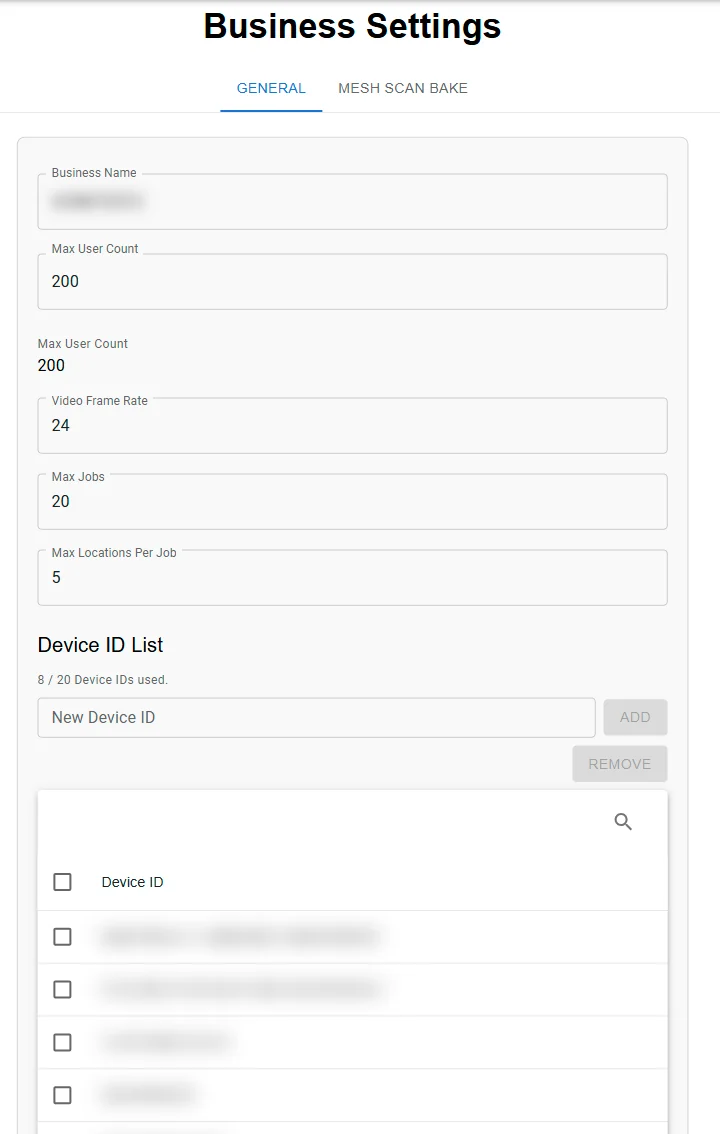
- Business Name: your business account. It cannot be changed here.
- Max User Count: how many users the business may have, set by HyperTunnel. The Users page stops adding users at this number. To change it, contact HyperTunnel.
- Video Frame Rate: the frame rate of video captured in the app.
- Max Jobs and Max Locations Per Job: the business's limits on jobs, and on locations in each job.
Device ID List
Some businesses allow sign-in only from registered devices. The Device ID List holds those devices, and "n / max Device IDs used." shows how many of the business's slots are taken.
- To add a device, type its ID in New Device ID and click Add.
- To remove devices, tick them and click Remove.
A device that is not on the list can ask for access when someone signs in on it. Approving the request adds the device here (see Device Access Requests).
Click Save to keep your changes, including additions and removals in the Device ID List. "Saved." confirms it; if the save fails, a message says your changes were not saved. Close leaves the page; with unsaved changes it asks first.
Mesh Scan Bake
Mesh scans made in the app are processed ("baked") by HyperTunnel into textured 3D models. This tab sets how your business's scans are baked. Changes apply to scans baked after you save; bakes already running are not affected.
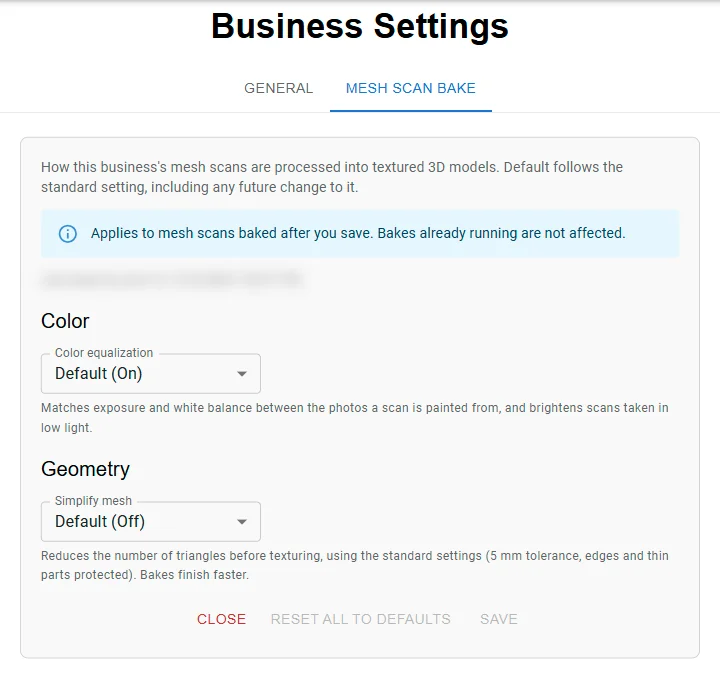
Each setting is Default, On or Off. Default follows HyperTunnel's standard setting, including any future change to it; a setting you change shows Overridden.
| Setting | Default | What it does |
|---|---|---|
| Color equalization | On | Matches exposure and white balance between the photos a scan is painted from, and brightens scans taken in low light. Off paints each photo as captured, so color and brightness can change visibly where one photo meets the next |
| Simplify mesh | Off | Reduces the number of triangles before texturing, so bakes finish faster. Some surfaces can look worse |
- Save keeps your changes. "Saved. Mesh scans baked from now on use these settings." confirms it.
- Reset all to defaults sets every setting back to Default. Click Save afterwards to keep it.
- If another admin saved in the meantime, your save is refused and their settings are shown. Make your changes again.