Users
The Users page lists everyone in your business account. Only a Business Admin sees it: click Users in the top bar.

- The list shows each user's Name (their username) and Email, with edit (pencil) and delete (bin) buttons.
- Users: n/max shows how many users the business has and how many it may have. At the limit, Add User is disabled: delete a user you no longer need, or contact HyperTunnel to raise the limit.
- Search, filter and paging work as on the Job List. The list refreshes every 10 seconds.
Add a user
- Click Add User.
- Enter a Username and the user's Email. The username cannot be changed later.
- Tick Business Admin if the user should manage users and business settings too.
- Click Create User.
The user is emailed a temporary password. At their first sign-in they choose a new password and set up an authenticator app (see Signing In). Every new user can use all of the business's tools.
Edit a user
Click the pencil in the user's row. The Edit User dialog opens.
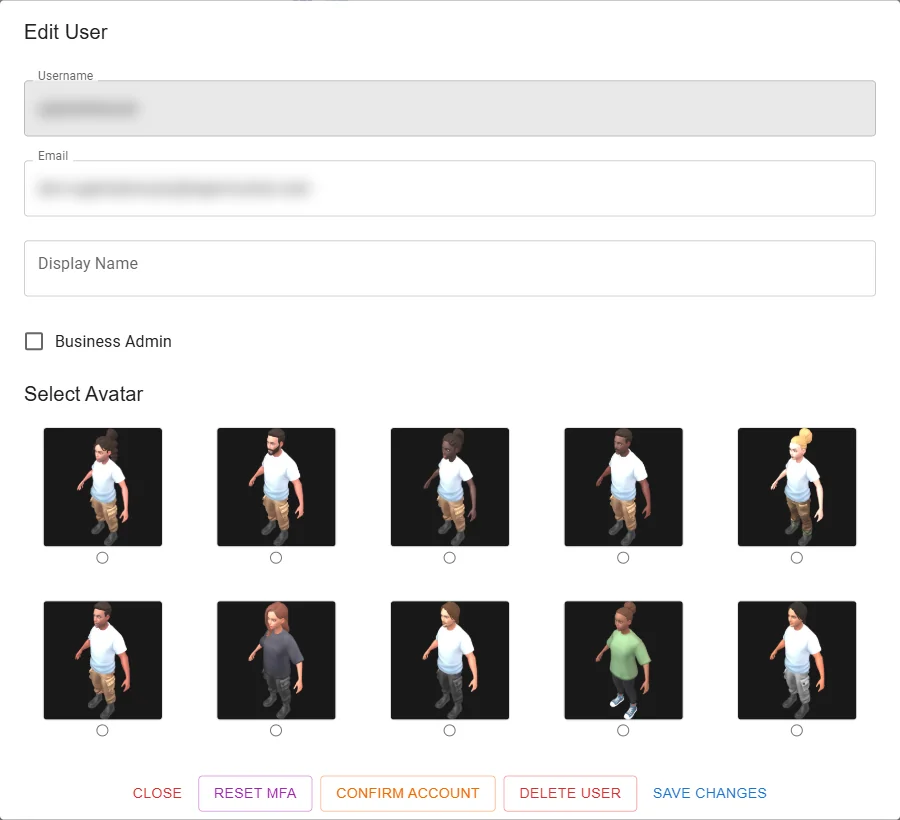
- Username cannot be changed.
- Email: where HyperTunnel sends the user's emails, such as a temporary password.
- Display Name: the name others see in the app.
- Business Admin: tick to make the user a Business Admin. An existing Business Admin cannot be changed back to a regular user here.
- Select Avatar: the avatar the user appears as in the app (see Avatars).
Click Save Changes to save, or Close to leave without saving.
Reset MFA
Use Reset MFA when a user has lost the phone or app that makes their sign-in codes (their authenticator).
- Open the user's Edit User dialog and click Reset MFA.
- Confirm.
Reset MFA ends all of the user's sessions, and their old password and authenticator stop working. They are emailed a new temporary password, then choose a new password and set up their authenticator again at their next sign-in. No other user is affected.
You cannot reset your own MFA: ask another Business Admin. If a user had not finished setting up their account, Reset MFA sends their invitation again instead.
Confirm an account
Use Confirm Account when a new user cannot finish their first sign-in, for example because their temporary password expired. It confirms the account so that the user can choose a password with Forgot your password? on the sign-in screen.
Click Confirm Account, then OK in the confirmation. You cannot confirm your own account.
Confirm Account replaces the user's current password. Tell the user to use Forgot your password? next.
Delete a user
- Click the bin in the user's row, or Delete User in the Edit User dialog.
- Confirm with Delete.
The user is removed and can no longer sign in. They can be added again later with the same username. You cannot delete your own account.