Assets
See also: Objects
Assets are the files a job uses: 3D models, images, videos, audio, PDFs and Gaussian splats. Once registered to a job, they are on the job's Shelf in the app, where anyone in the job can place them (see Spawn from Shelf).
Opening a job's assets
- In the top bar, click Jobs.
- In the job's row, click ⋮, then Manage Assets.
The Asset Management page opens with the job's name under the heading. It has two tabs: Assets and Mesh Scan Download.
Assets tab
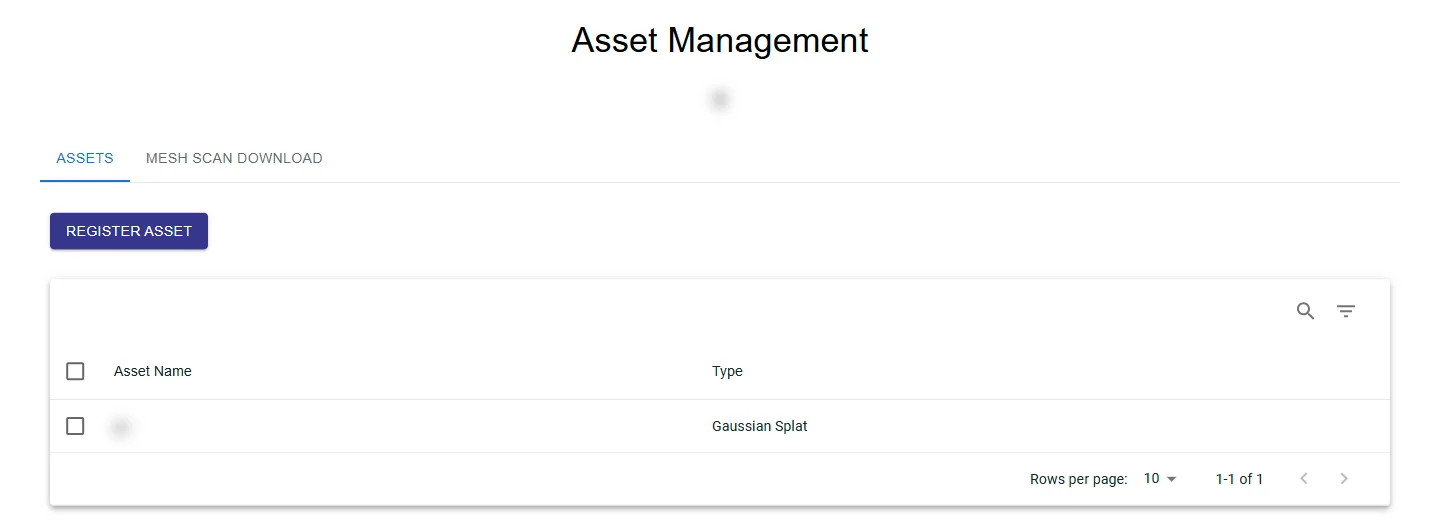
The list shows each asset's Asset Name and Type.
- Search (magnifying glass) finds assets by name. Filter Table narrows the list by name or type.
- Show 10, 50 or 100 rows per page.
- The list refreshes itself every 10 seconds.
- A 3D model is listed once, even though HyperTunnel keeps extra processed copies of it.
To add a file, click Register Asset. The steps are in Upload Assets.
Assets cannot be renamed or deleted from this page.
Mesh Scan Download tab
Mesh scans are made on an iPad with the Scan tool. After a scan is saved, HyperTunnel
processes it into a textured 3D model (a .glb file). This tab lists the job's scans so you can download them.
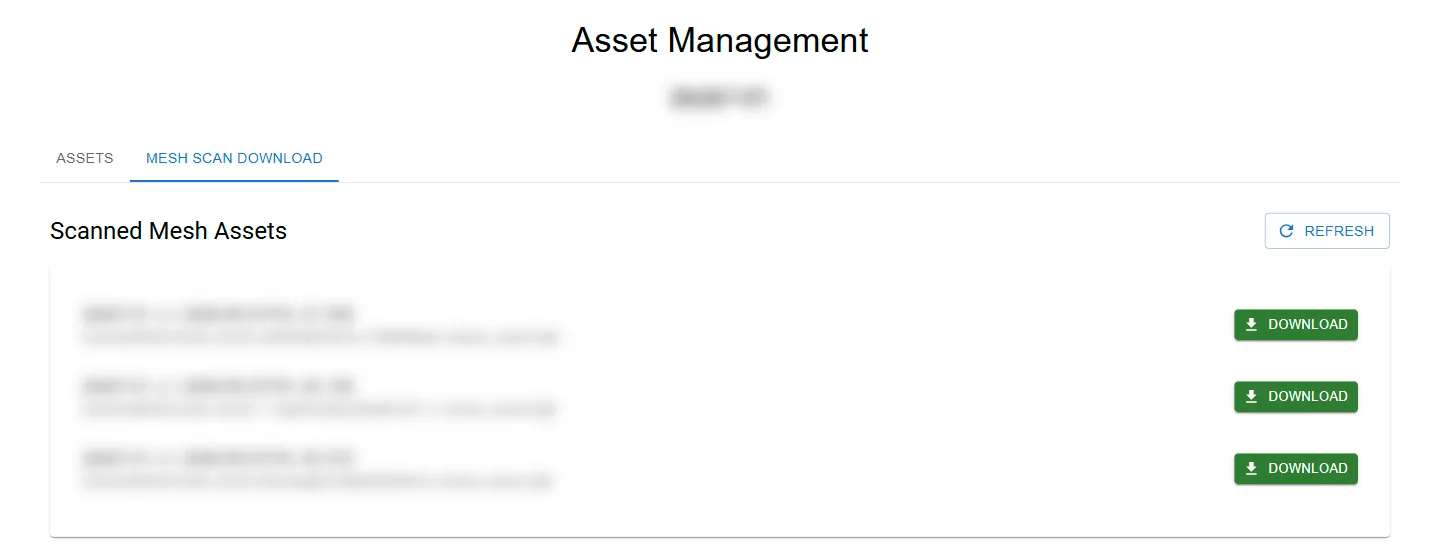
- Each scan is named
{job}_{location}_{date and time}, for example26257-01_Lobby_2026-09-14T15_02_11Z. The time is in UTC. - Download appears once the scan has finished processing. A scan still being processed is listed without it.
- Click Refresh to check for new scans. The list also refreshes itself every 10 seconds.
To include scanned meshes in a ZIP export with the job's other assets, see Exporting Content.
Upload Assets
Register a file to a job from the Web Console. Once uploaded, it is on the job's Shelf in the app, where anyone in the job can place it (see Spawn from Shelf).
Steps
- In the top bar, click Jobs. In the job's row, click ⋮, then Manage Assets.
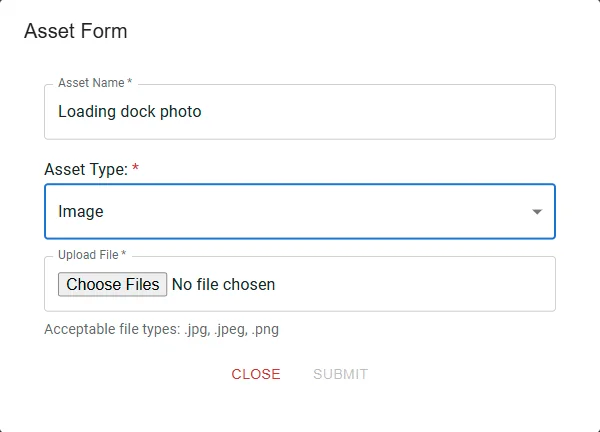
- On the Assets tab, click Register Asset. The Asset Form opens.
- Enter an Asset Name.
- Choose the Asset Type. The form shows the file types it accepts.
- Click Upload File and choose the file.
- For a Mesh, set the options described under 3D model options.
- Click Submit. The button reads Loading... while the file uploads.
When the upload finishes, the form closes and the asset appears in the list. Keep the form open until then: a large file can take several minutes.
Asset types and file formats
| Asset Type | Files accepted | In the app |
|---|---|---|
| Mesh | .zip, .obj, .fbx, .glb, .gltf, .ply, .stl | A 3D model |
| Image | .jpg, .jpeg, .png | An image panel |
| Video | .mp4 | A video panel; tap to play |
| Audio | .wav, .mp3, .ogg | An audio player |
.pdf | A PDF viewer (see PDF Viewer) | |
| Gaussian Splat (.ply) | .ply | A Gaussian splat capture of a place |
3D model options
These appear when the Asset Type is Mesh.
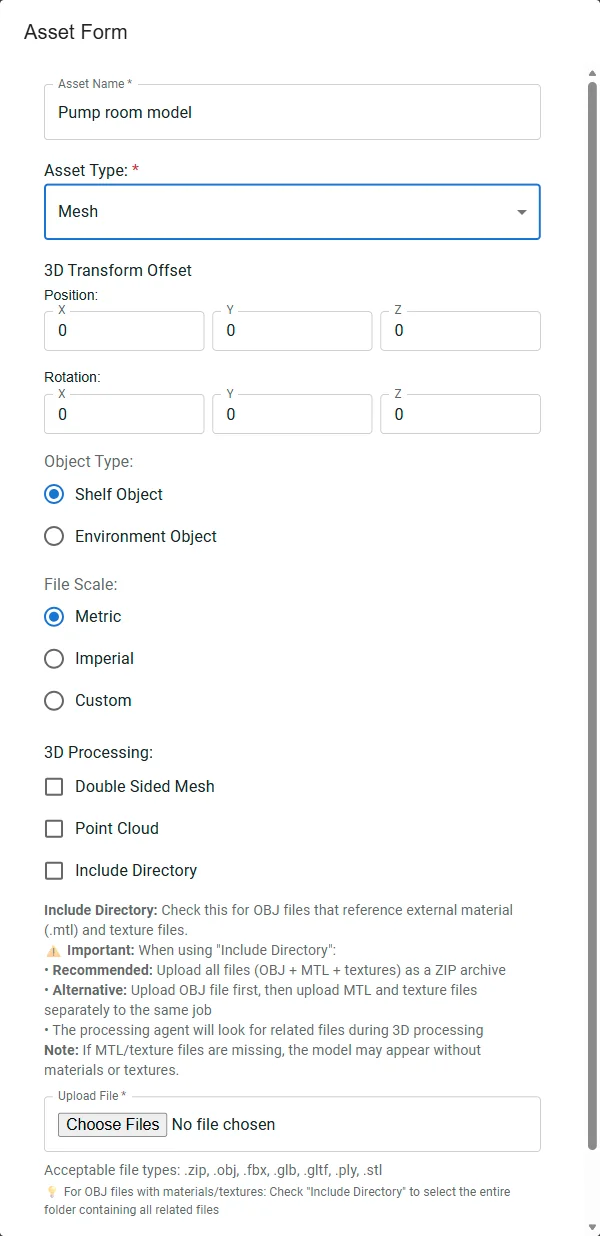
- 3D Transform Offset: moves (Position X, Y, Z) and turns (Rotation X, Y, Z) the model when it is placed. Enter whole numbers; all are 0 by default.
- Object Type:
- Shelf Object (default): the model goes on the job's Shelf.
- Environment Object: the model also becomes the job's environment, the 3D surroundings users see when they enter the job.
- File Scale: the units the file was made in: Metric (default), Imperial, or Custom with a Custom Value.
- 3D Processing:
- Double Sided Mesh: show the faces of the model from both sides.
- Point Cloud: process the file as a point cloud.
- Include Directory: for an OBJ model that uses separate material (
.mtl) and texture files.
OBJ models with materials and textures
An .obj file often relies on a .mtl file and texture images next to it. Without them, the model appears
without its colors and textures. Either:
- Recommended: put the
.obj,.mtland texture files in one ZIP file and upload the ZIP, or - tick Include Directory, then click Select Directory (containing OBJ + MTL + Textures) and choose the
folder. The form shows how many files it found, for example "1 OBJ, 1 MTL, 4 textures", and packages them
into one ZIP for you. The folder must contain exactly one
.objfile.
If the upload is refused
- "Job is busy, please try again later." Someone has the job checked out in the app, or HyperTunnel is processing it. Try again later.
- "Asset upload failed." Check the job's asset list before trying again: the asset may have been partly registered.