Exporting Content
The Export dialog makes downloadable copies of a job:
- Export Job: the whole job in one archive. You can import it again as a new job (see Job List).
- Export Assets: chosen kinds of asset (meshes, scanned meshes, images, videos, audio recordings, PDFs and HyperNotes) in one ZIP file.
An export is prepared in the background. You can close the dialog and come back for the download later.
Opening the Export dialog
- In the top bar, click Jobs.
- In the job's row, click ⋮, then Export.
The dialog opens on the Export Job tab, with the job's name under the title.
Export a whole job
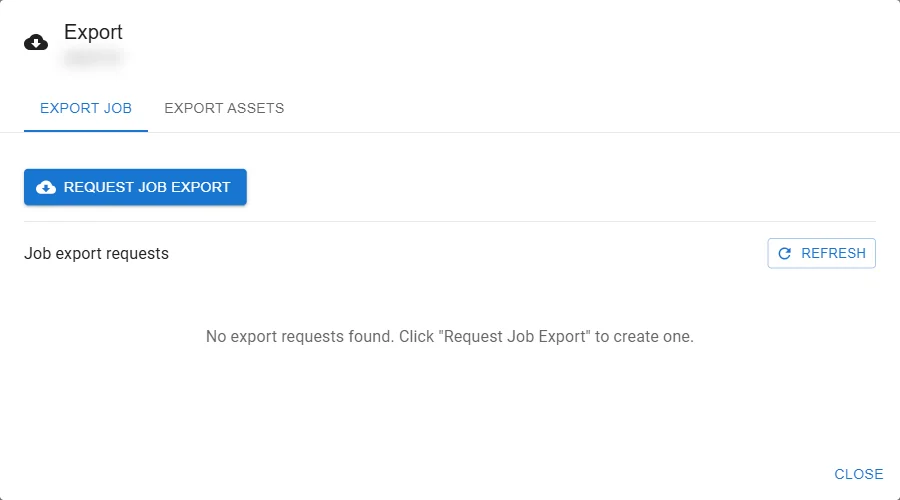
- On the Export Job tab, click Request Job Export.
- The request appears under Job export requests as Processing.
- When it shows Ready, click Download.
Export assets
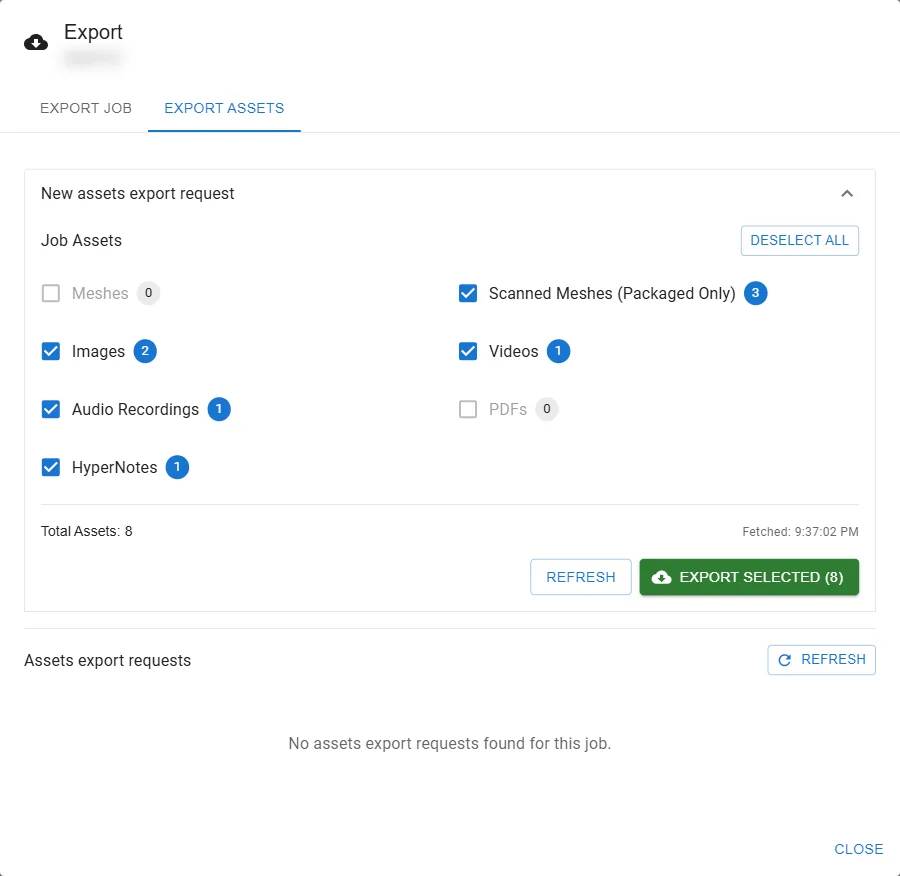
- Click the Export Assets tab. Under Job Assets, each kind of asset shows how many the job has.
- Tick the kinds you want. Every kind the job has is ticked to start with; kinds with none are greyed out. Select All / Deselect All ticks or clears them all.
- Click Export Selected (N), where N is the number of files that will be exported.
- "Export Task Created Successfully!" confirms the request. It appears under Assets export requests.
- When it shows Ready, click Download.
Refresh next to the counts re-counts the job's assets, for example after an upload.
Scanned Meshes (Packaged Only) counts only scans that have finished processing. A scan still being processed is not exported yet; check the job's Mesh Scan Download tab (see Assets).
Export requests
Each tab lists its own requests, newest first. A request shows its file name, when it was created, and its status:
| Status | Meaning | Actions |
|---|---|---|
| Processing | The export is being prepared | — |
| Ready | The file is ready | Download, Delete |
| Failed | The export did not complete; the error is shown | Delete |
The lists refresh every 10 seconds; Refresh updates them at once.
Export files are named after the job and the time the export was requested (in UTC), for example
Hangar_3_2026-10-12T15_04_05_123Z.zip for a job export and Hangar_3_assets_2026-10-12T15_04_05_123Z.zip for
an assets export. Characters other than letters, digits, - and _ in the job name become _.
Deleting an export
- Click Delete on a Ready or Failed request.
- Confirm with Delete.
The request leaves the list and its download stops working. The file itself is deleted permanently after a retention period. A request that is still Processing cannot be deleted.
If an export is refused
"Job is busy, please try again later." means someone has the job checked out in the app, or HyperTunnel is processing it (for example another export or a duplicate). Try again when it is free.