Job List
A job is a shared 3D workspace for a task, a service ticket or a project. It holds one or more locations, the assets placed in them, and the HyperNotes recorded there. Click Jobs in the top bar to see your business's jobs.
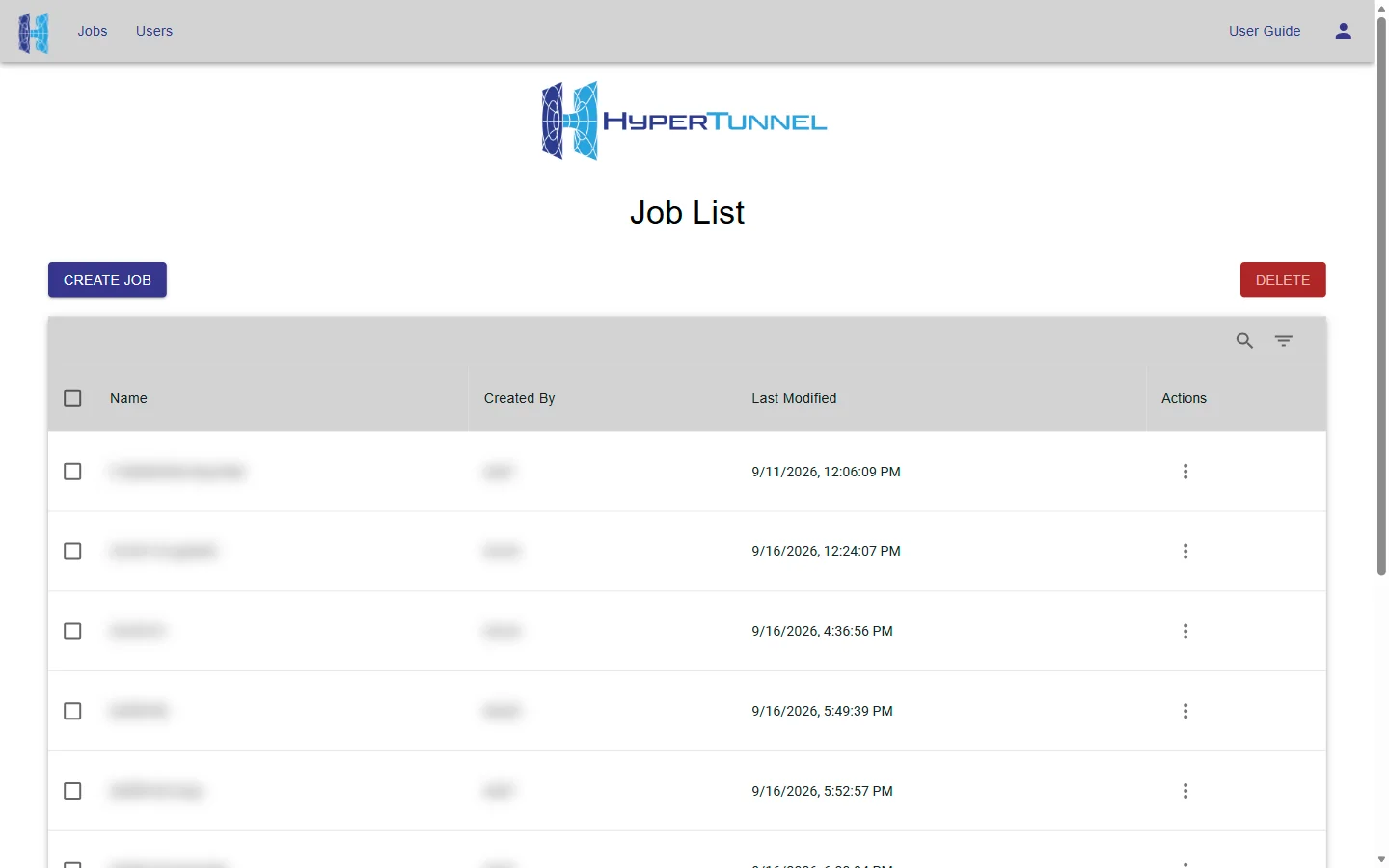
- Each job shows its Name, who created it (Created By) and when it last changed (Last Modified, in your local time). Click a column heading to sort by it.
- Search (magnifying glass) finds jobs by text; Filter Table narrows the list by name or creator.
- Show 10, 50 or 100 rows per page.
- The list refreshes itself every 10 seconds, keeping your search, sort and page. If it cannot reach HyperTunnel several times in a row, it stops and shows "Auto-refresh paused after repeated errors." Click Retry.
The ⋮ menu
Each job's ⋮ menu holds what you can do with it:

| Item | What it does |
|---|---|
| Enter Job | Opens the job in the HyperTunnel app on your iPhone, iPad or Quest (see Enter Job from the Web) |
| Manage Assets | The job's files and mesh scans (see Assets) |
| Manage Job | Rename the job, its locations and its HyperNotes (see Manage Job) |
| Duplicate Job | Make a copy of the job (see Duplicate Job) |
| Export | Download the job or its assets (see Exporting Content) |
Create a job
- Click Create Job. The Create a Job dialog opens.
- The Job Name is filled in with a generated name such as
26285-01: the year and day of the year, then a number for that day. Keep it or type your own. - Click Create Job.
The job appears in the list. It starts with one location, its home base, for users entering in VR.

Job names:
- can be 1–100 characters long;
- can use letters, numbers, spaces, hyphens (
-), underscores (_) and dots (.); - must be different from every other job in your business. Capitals count: "Alpha" and "alpha" are different names.
Importing a job
A job exported with Export Job (see Exporting Content) can be brought back as a new job.
- Click Create Job, then tick Import job from ZIP file. The dialog becomes Import a Job.
- Click Select ZIP File and choose the exported
.zipfile. - Enter a Job Name for the imported job.
- Click Import Job.
"Import started." confirms the upload. The job appears in the list when HyperTunnel has finished processing it.
Delete jobs
- Tick the jobs to delete.
- Click Delete and confirm.
Deleting a job cannot be undone. Export it first if you may need it again.
A job that someone has checked out in the app, or that HyperTunnel is processing, cannot be deleted. If any job you ticked is busy, nothing is deleted, and a message names the busy jobs.